Receive stock

Every slab with a code and a landed cost

  • A delivery with its docket
Warehouse storekeeper
Goods receipts

Warehouse storekeeper

Goods receipts

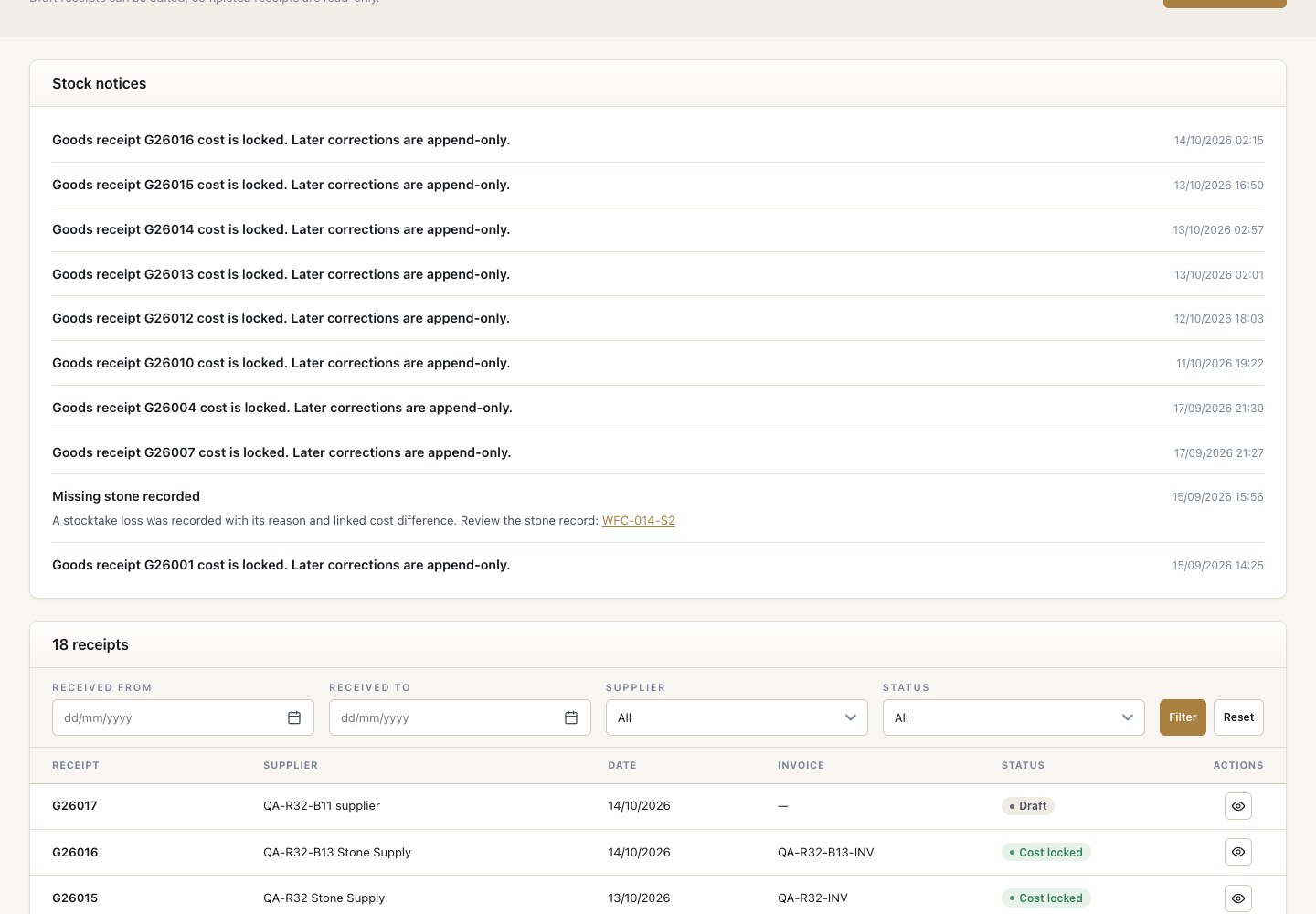
1Step 1 of 8

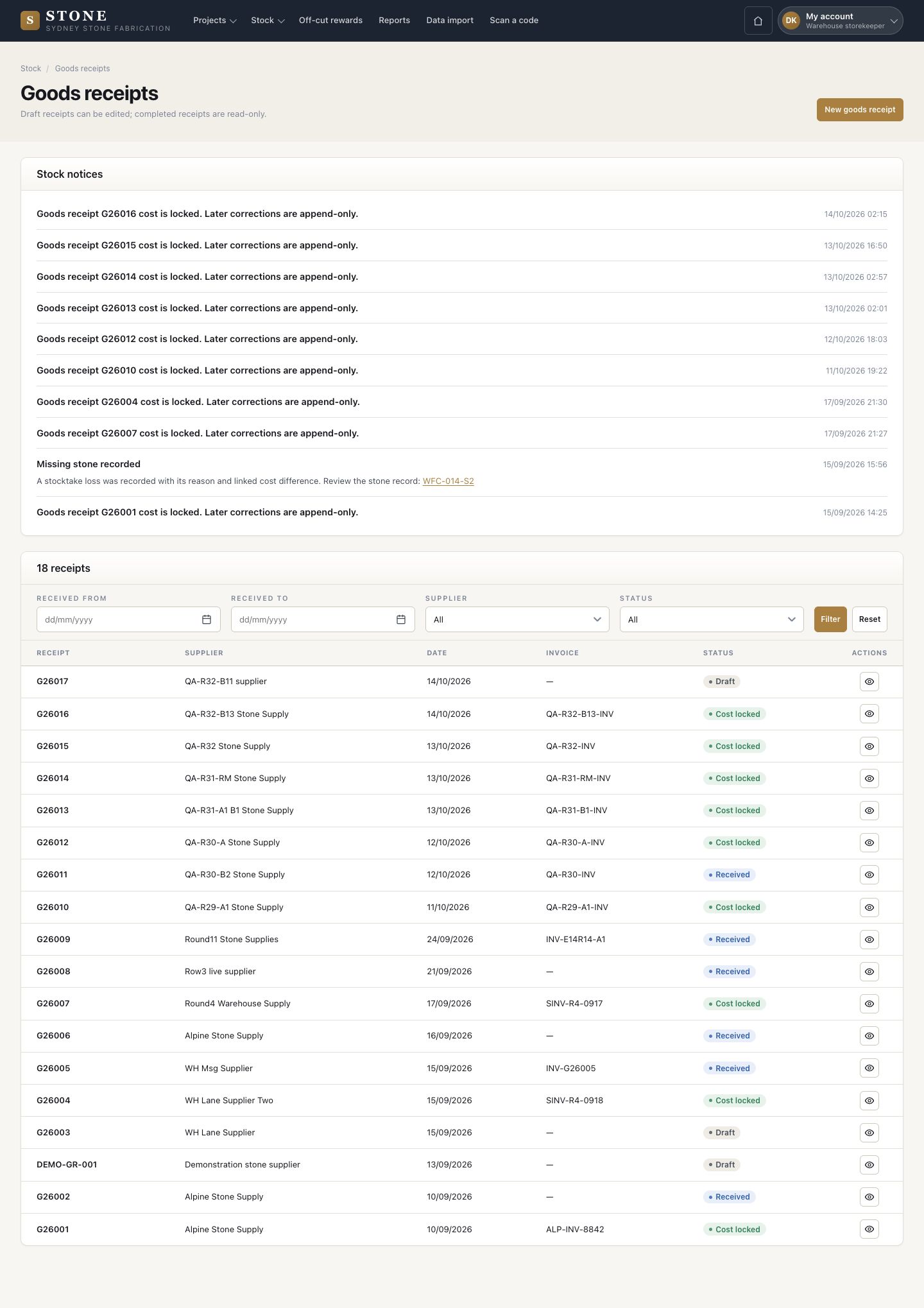
  1. Stock → Goods receipts: every docket with its supplier, date, invoice and status.
  2. Stock notices above the list say when a cost is locked.
  3. New goods receipt.

Draft receipts can be edited; completed receipts are read-only.

Enlarge, then scroll

Open in Stone ↗Full image ↗

Warehouse storekeeper · Receive stock01

New goods receipt

Warehouse storekeeper

New goods receipt

2Step 2 of 8

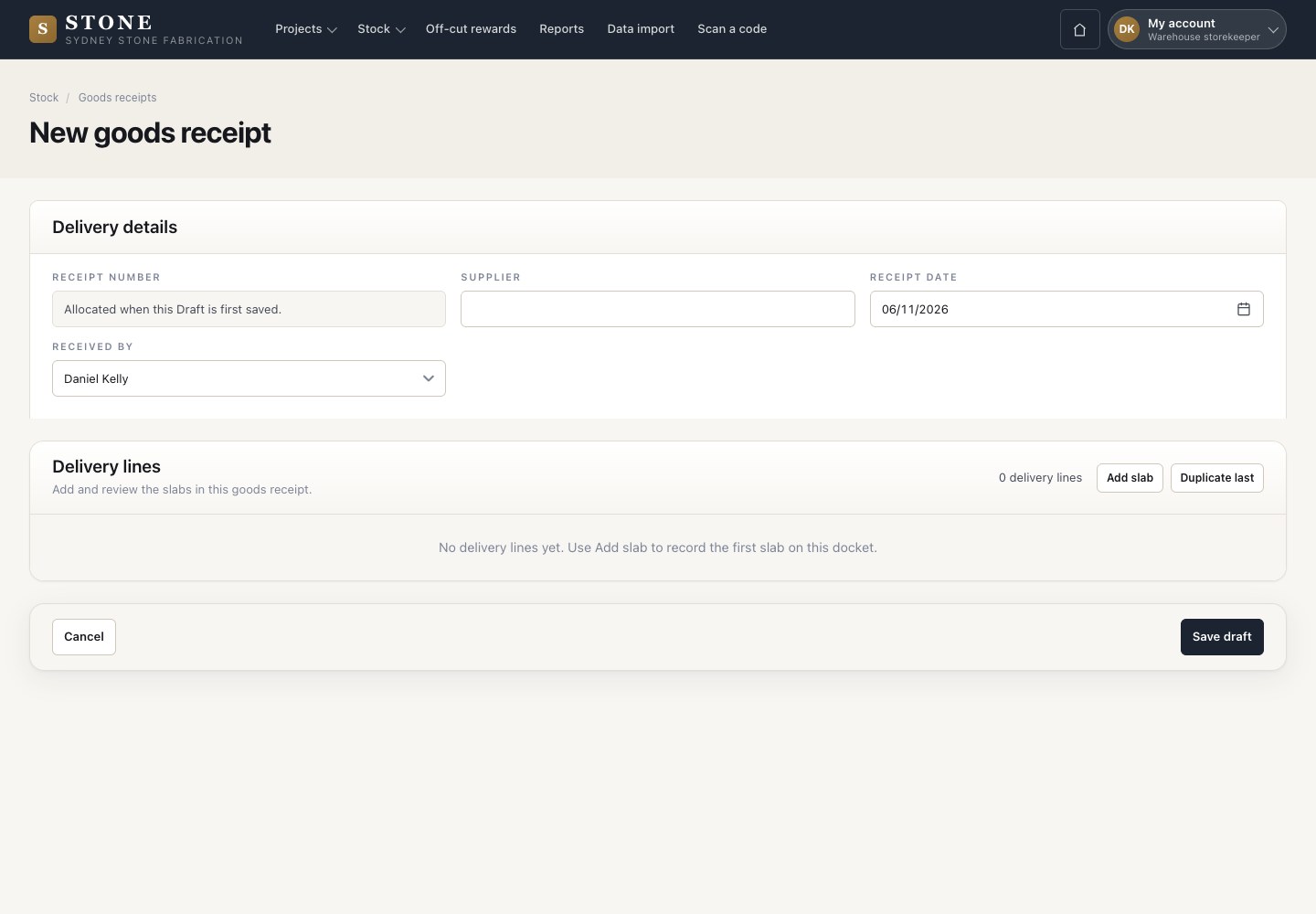
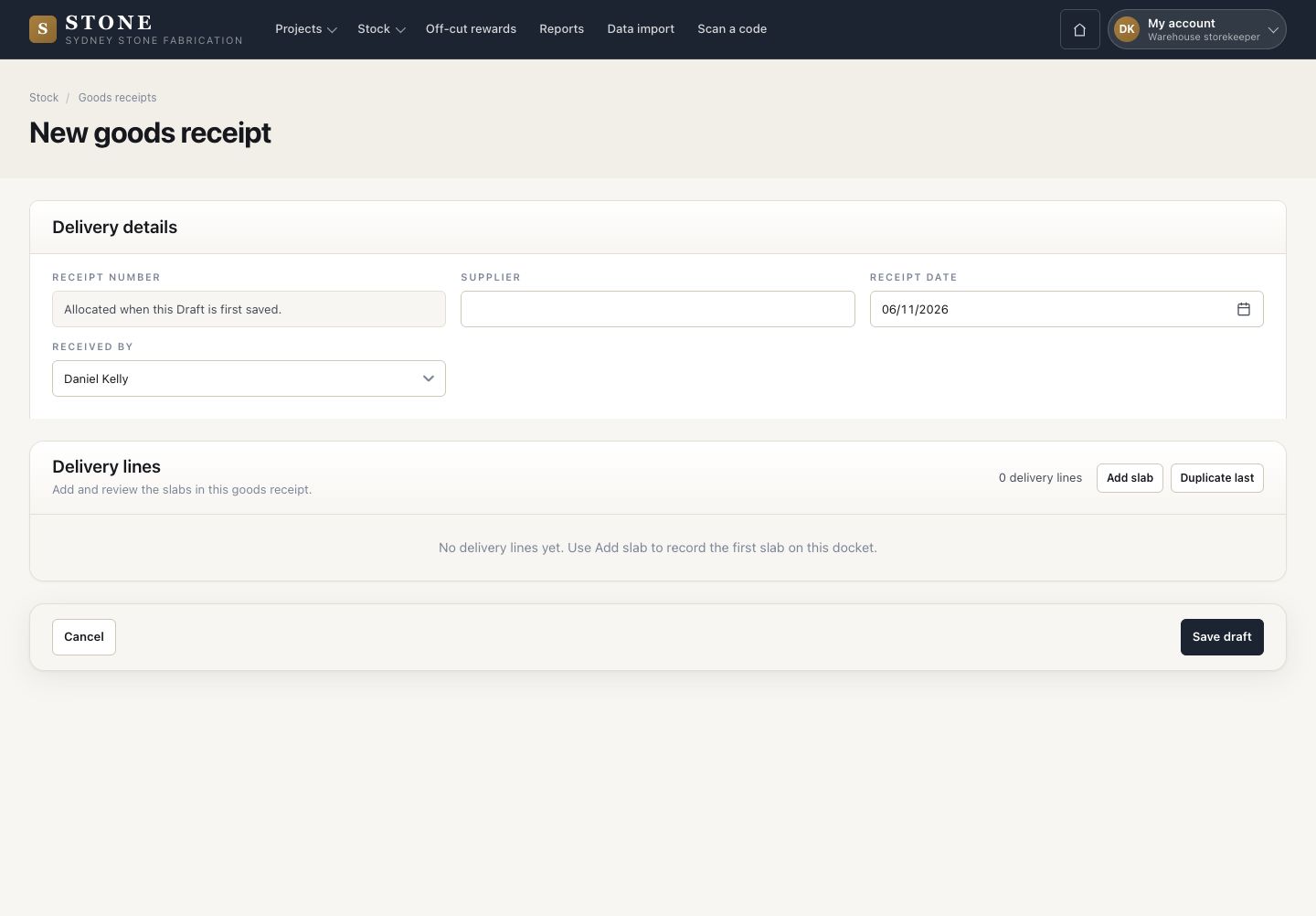
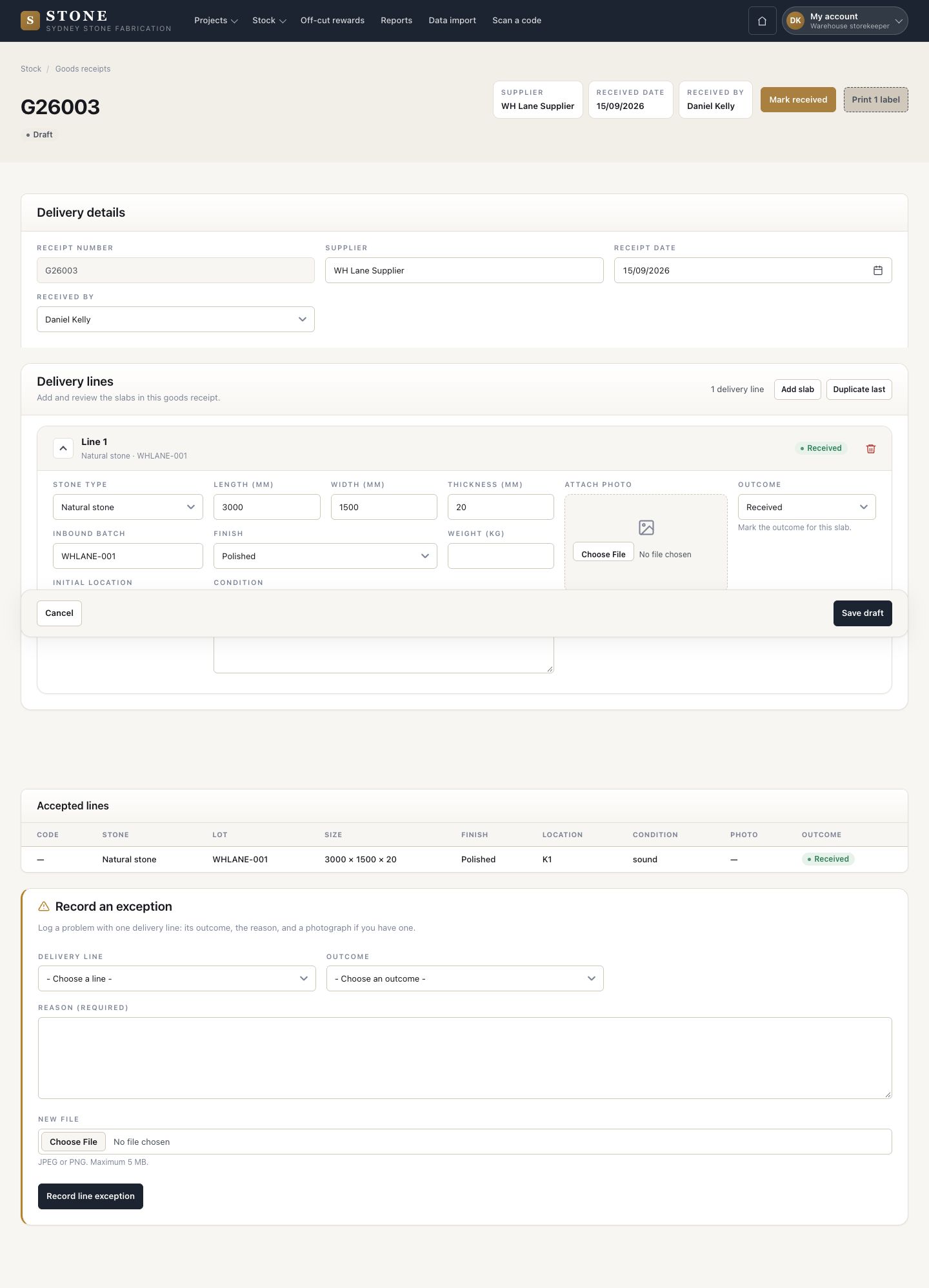
  1. Enter the supplier, the date and who received it.
  2. Add slab for each piece; Duplicate last copies the line above.
  3. Save draft.

Open in Stone ↗Full image ↗

Warehouse storekeeper · Receive stock02

Enter each slab

Warehouse storekeeper
Enter each slab

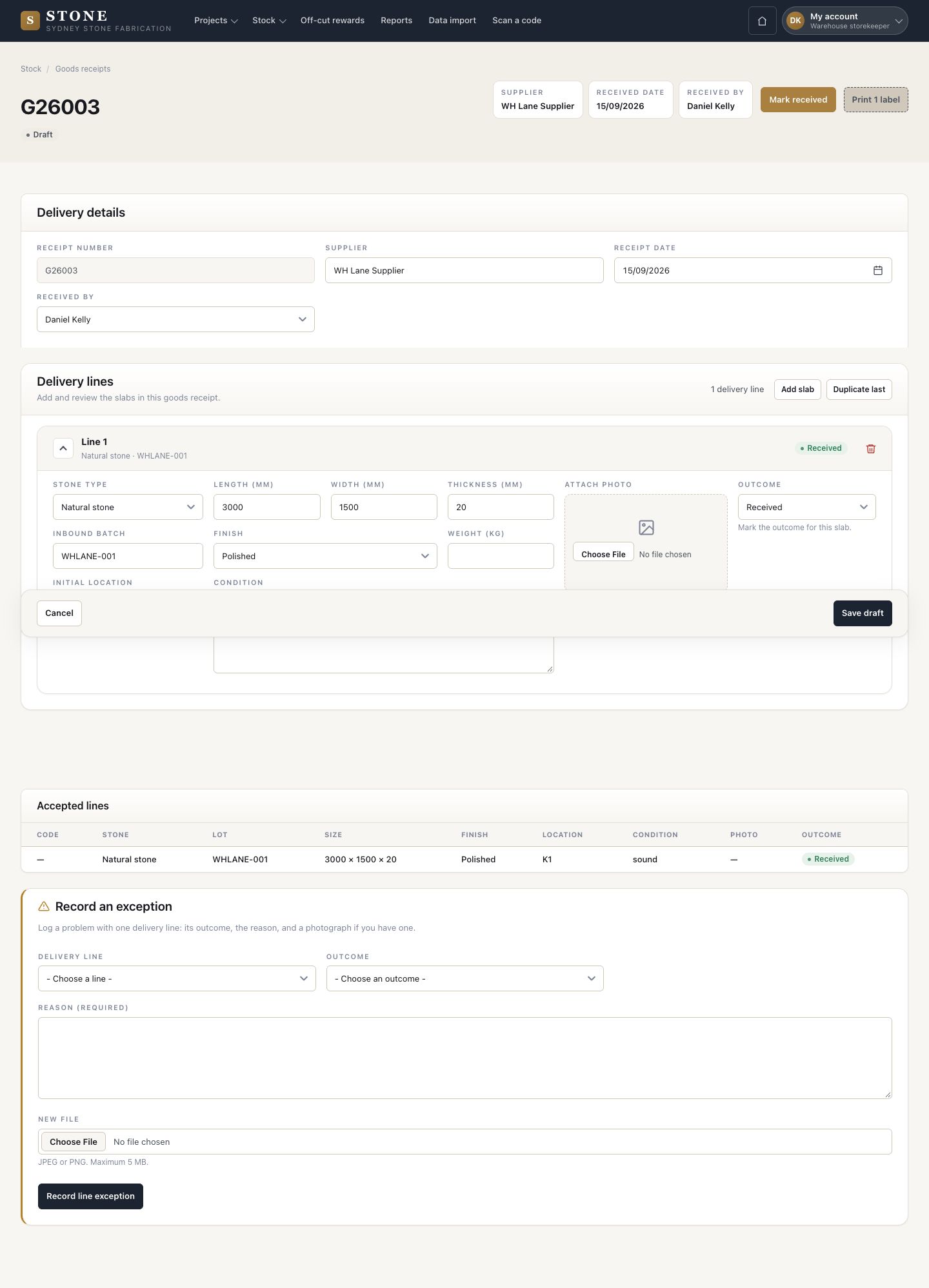
3Step 3 of 8

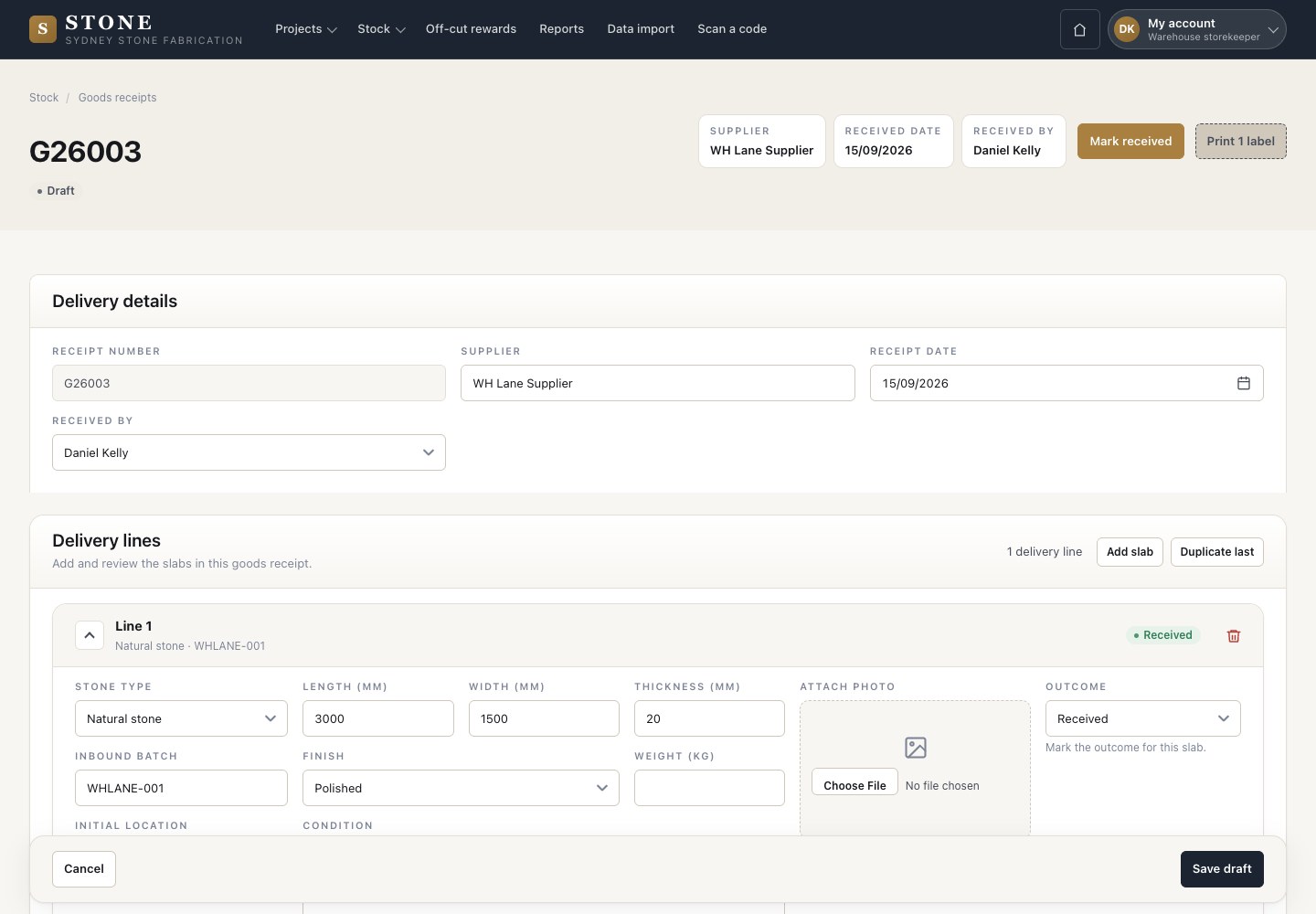
  1. Each line: stone type, inbound batch, length, width, thickness, finish, weight, location, condition, a photo and the outcome.
  2. The outcome is Received, Returned or Broken.

Photograph each slab on its line. Its code and label come when you press Mark received.

Enlarge, then scroll

Open in Stone ↗Full image ↗

Warehouse storekeeper · Receive stock03

Returned or broken

Warehouse storekeeper

Returned or broken

4Step 4 of 8

  1. For a piece sent back or broken, use Record an exception. Give the line, the outcome and the reason, with a file.
  2. Record line exception.

Enlarge, then scroll

Open in Stone ↗Full image ↗

Warehouse storekeeper · Receive stock04

Mark received

Warehouse storekeeper

Mark received

5Step 5 of 8

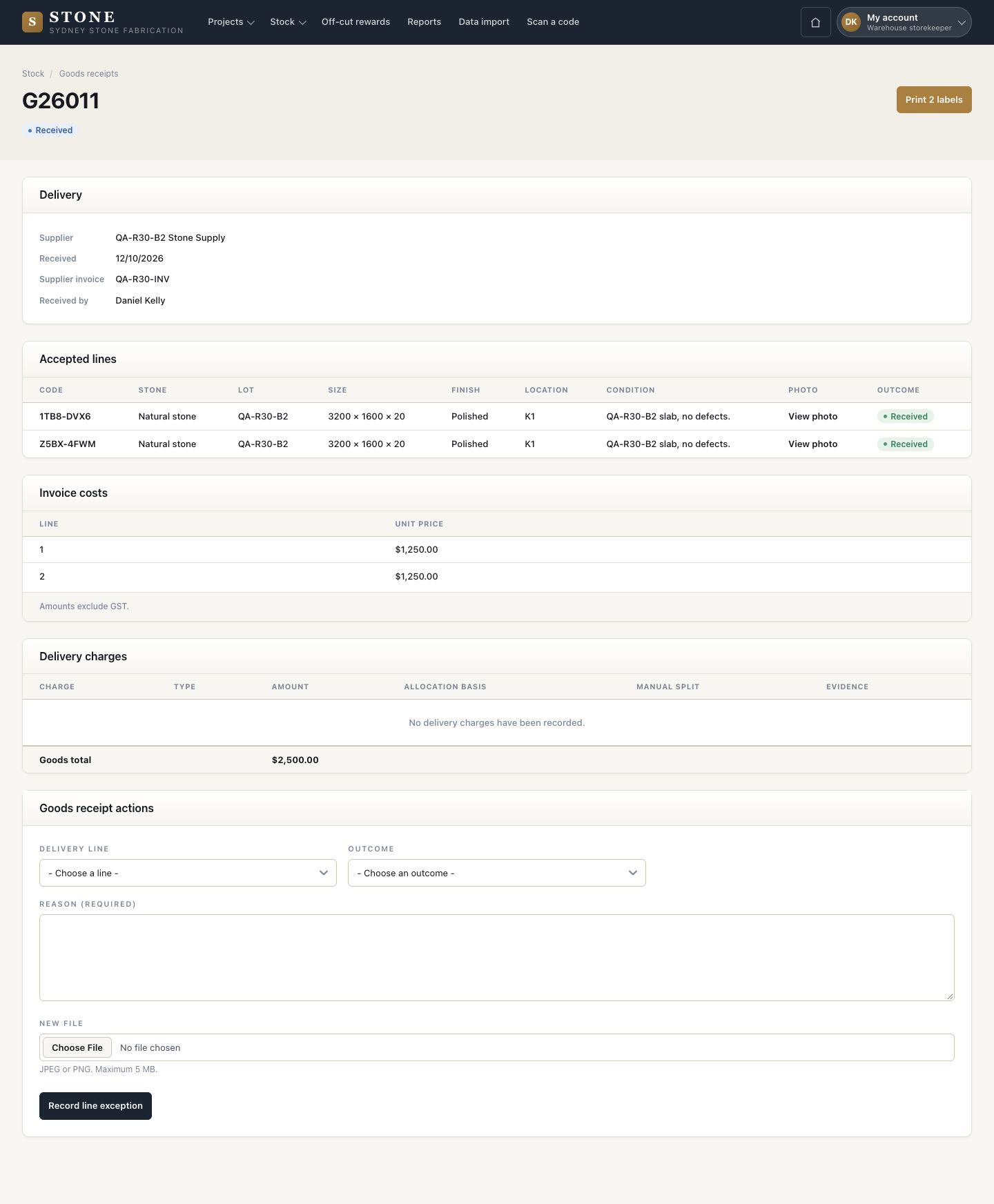
  1. Mark received completes the docket: each received line becomes a slab with its own code.
  2. Print the labels.

If the printer is unavailable, the label waits in the queue and the slab can still be used.

Enlarge, then scroll

Open in Stone ↗Full image ↗

Warehouse storekeeper · Receive stock05

Slab labels

Warehouse storekeeper

Slab labels

6Step 6 of 8

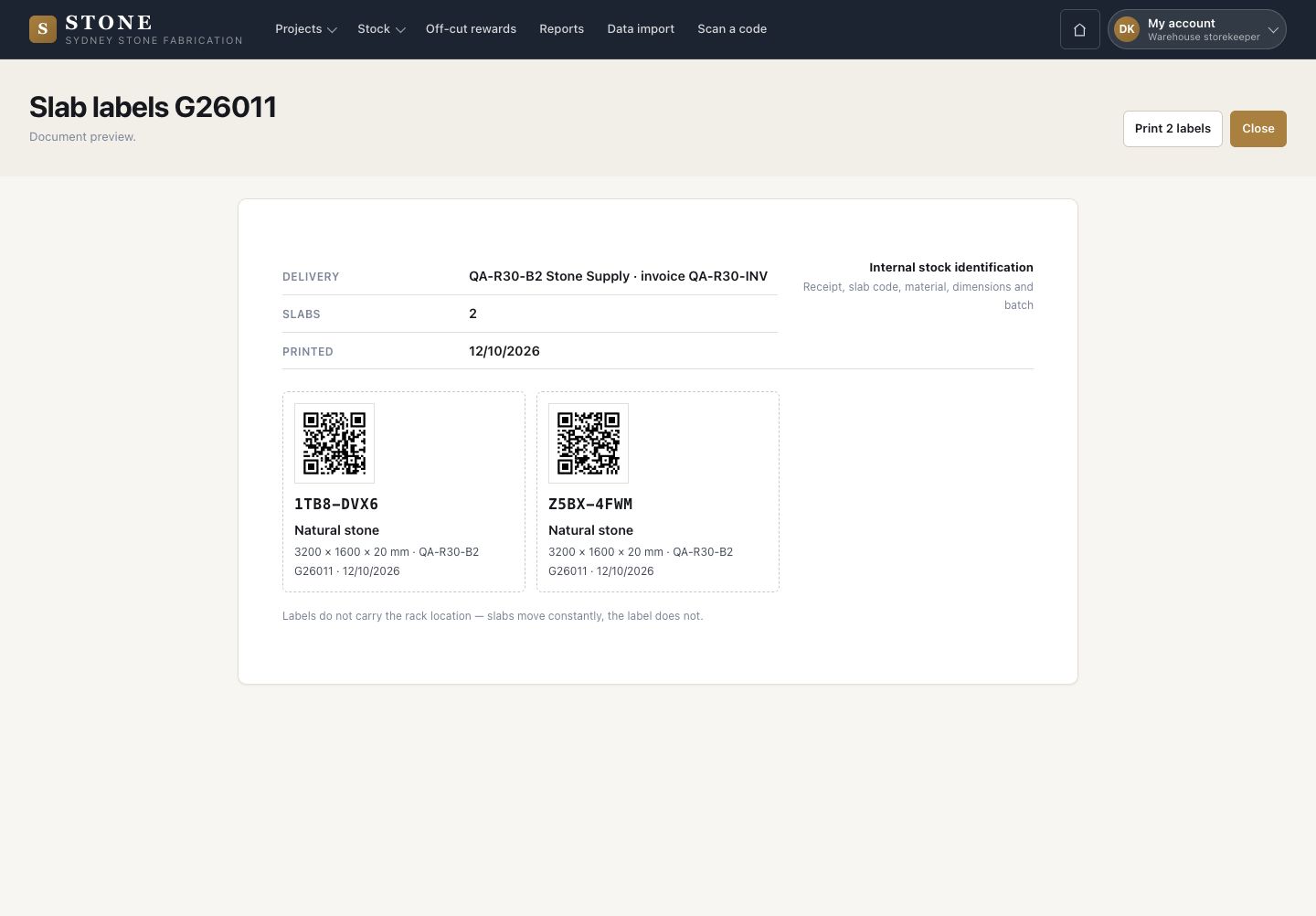
  1. The label sheet has one label for each slab of the docket, with its QR code.
  2. Print labels, then put each label on its slab.

A label does not carry the rack location: slabs move, the label does not.

Open in Stone ↗Full image ↗

Warehouse storekeeper · Receive stock06

Invoice and charges

Accountant

Invoice and charges

7Step 7 of 8

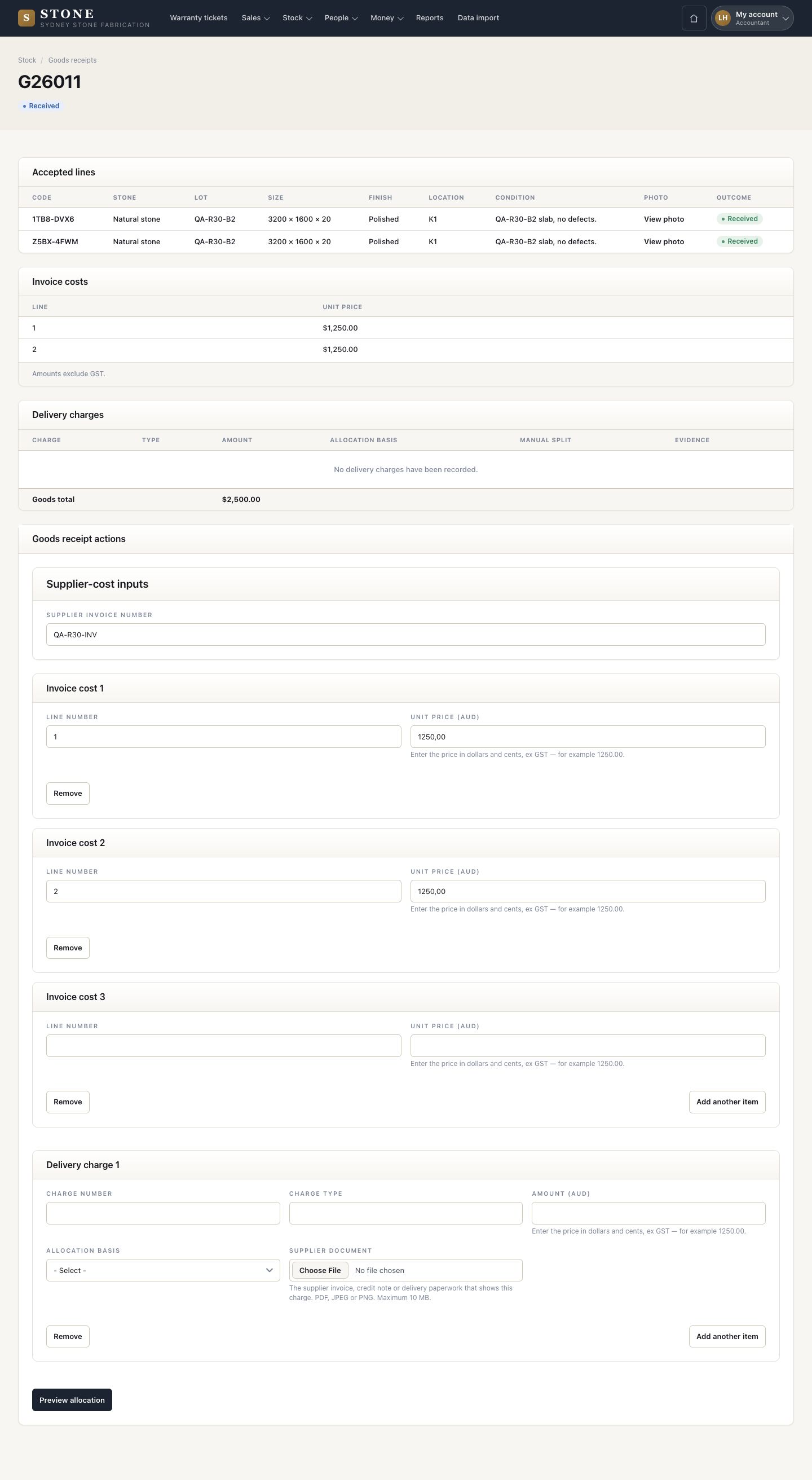
  1. The accountant finds the docket in My account, under Stock notices: it is received and waiting for its costs.
  2. Enter the supplier invoice number and the unit price of each line.
  3. Add each delivery charge: number, type, amount, allocation basis and the supplier document. The allocation basis says how the charge is shared across the slabs.
  4. Preview allocation, then Lock cost.

Enlarge, then scroll

Open in Stone ↗Full image ↗

Warehouse storekeeper · Receive stock07

After the cost locks

Accountant

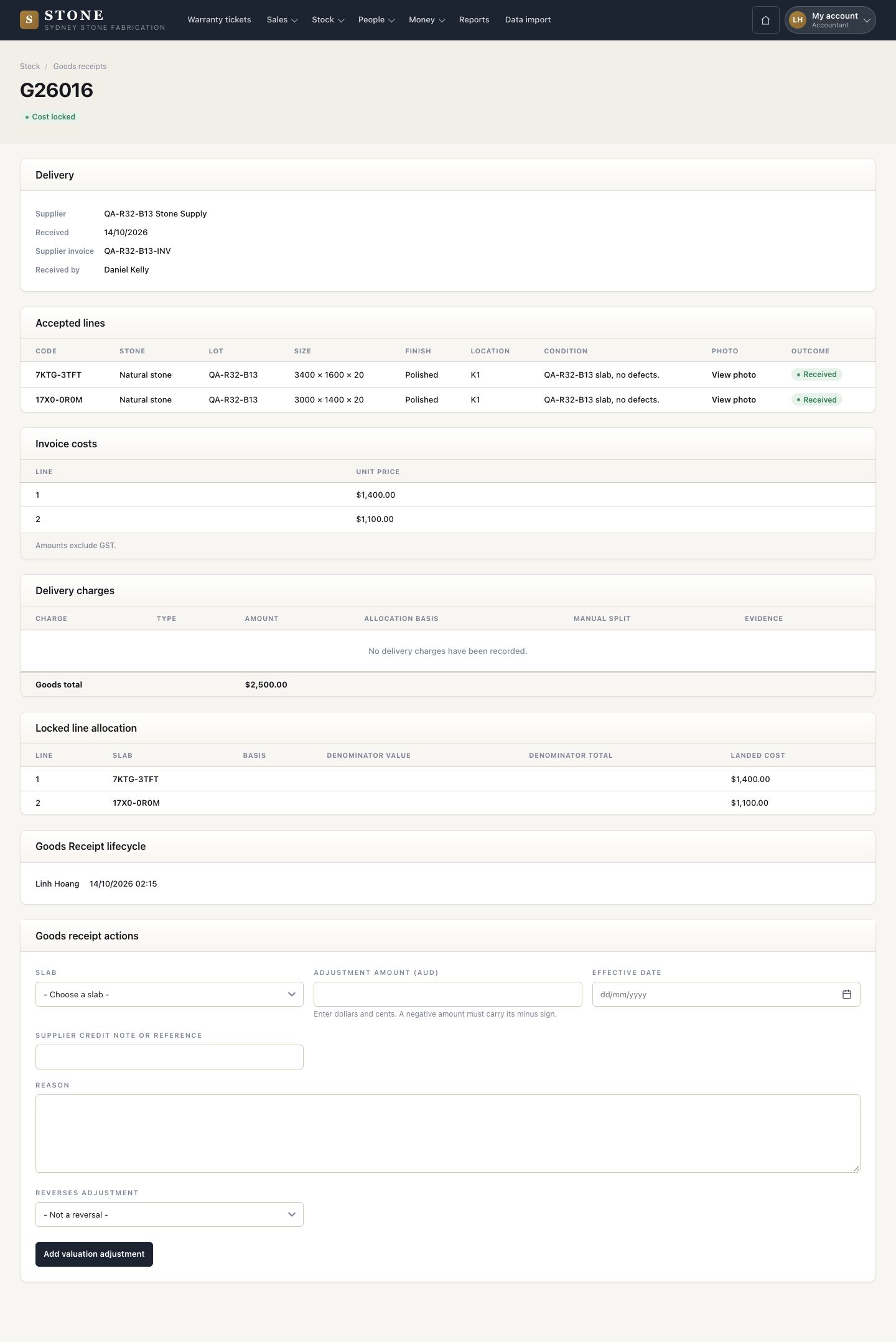
After the cost locks

8Step 8 of 8

  1. The landed cost of every slab (its price plus its share of the delivery charges) is fixed. It locks once.
  2. A later correction is a valuation adjustment: a new line with the credit note or reference and the reason. The locked cost is never edited.

Enlarge, then scroll

Open in Stone ↗Full image ↗

Check

The slabs are in stock with their labels, and their landed cost is locked

Warehouse storekeeper · Receive stock08
1 / 9