Install and sign off

Photos, a signature or a refusal, defects

  • Pieces ready to deliver
  • An installation crew
Project coordinator
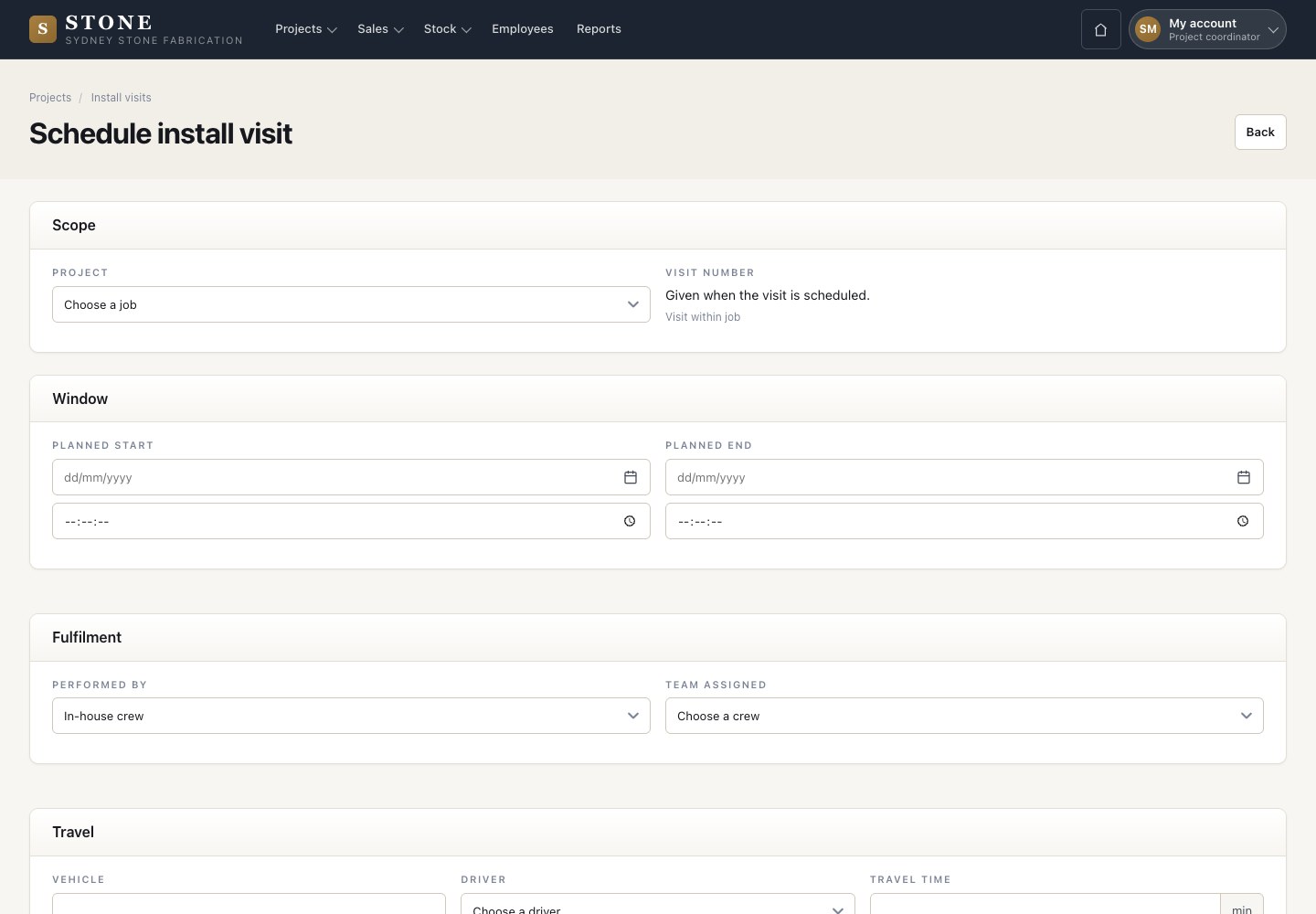
Schedule the visit

Project coordinator
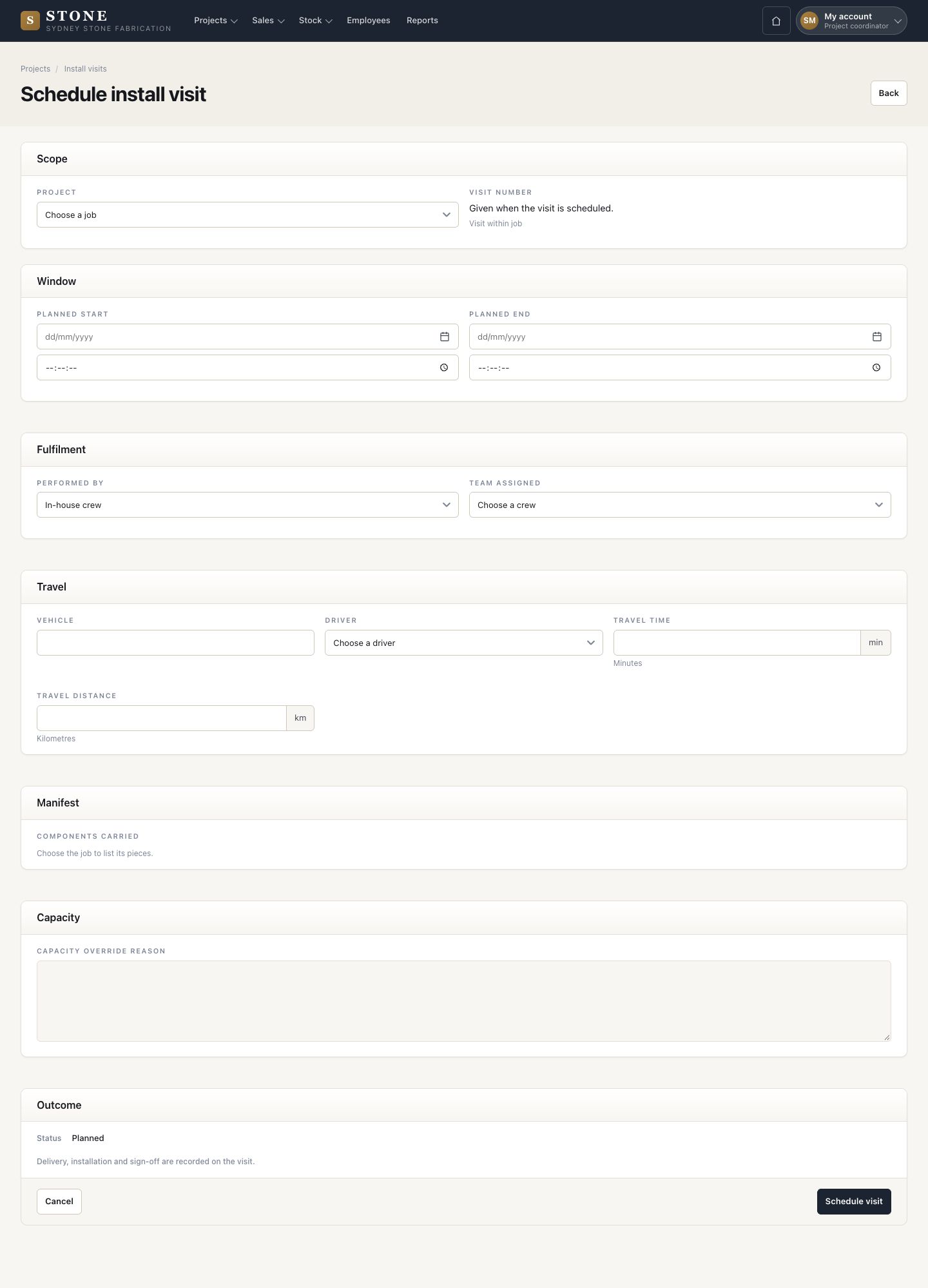
Schedule the visit

1Step 1 of 9

  1. Projects → Install visits → Schedule a visit.
  2. Choose the job, the start and end, and who performs it. Add the crew, the vehicle and the driver, then the travel time and distance.
  3. Schedule visit.

Crew and vehicle capacity is checked for the day. Only an administrator can go over it, with a capacity override reason.

Enlarge, then scroll
Open in Stone ↗Full image ↗

Project coordinator · Install and sign off01

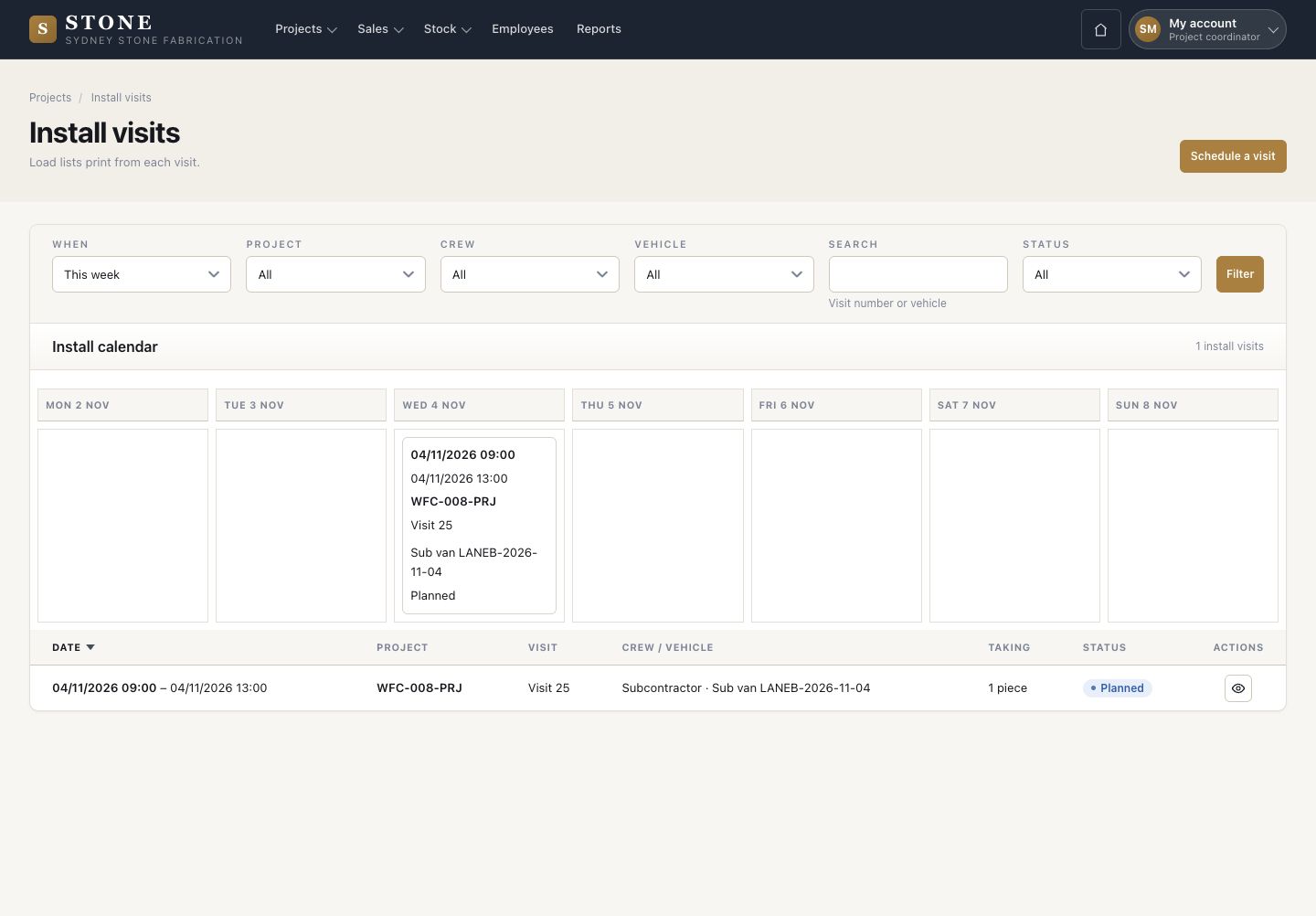
See the week's visits

Project coordinator

See the week's visits

2Step 2 of 9

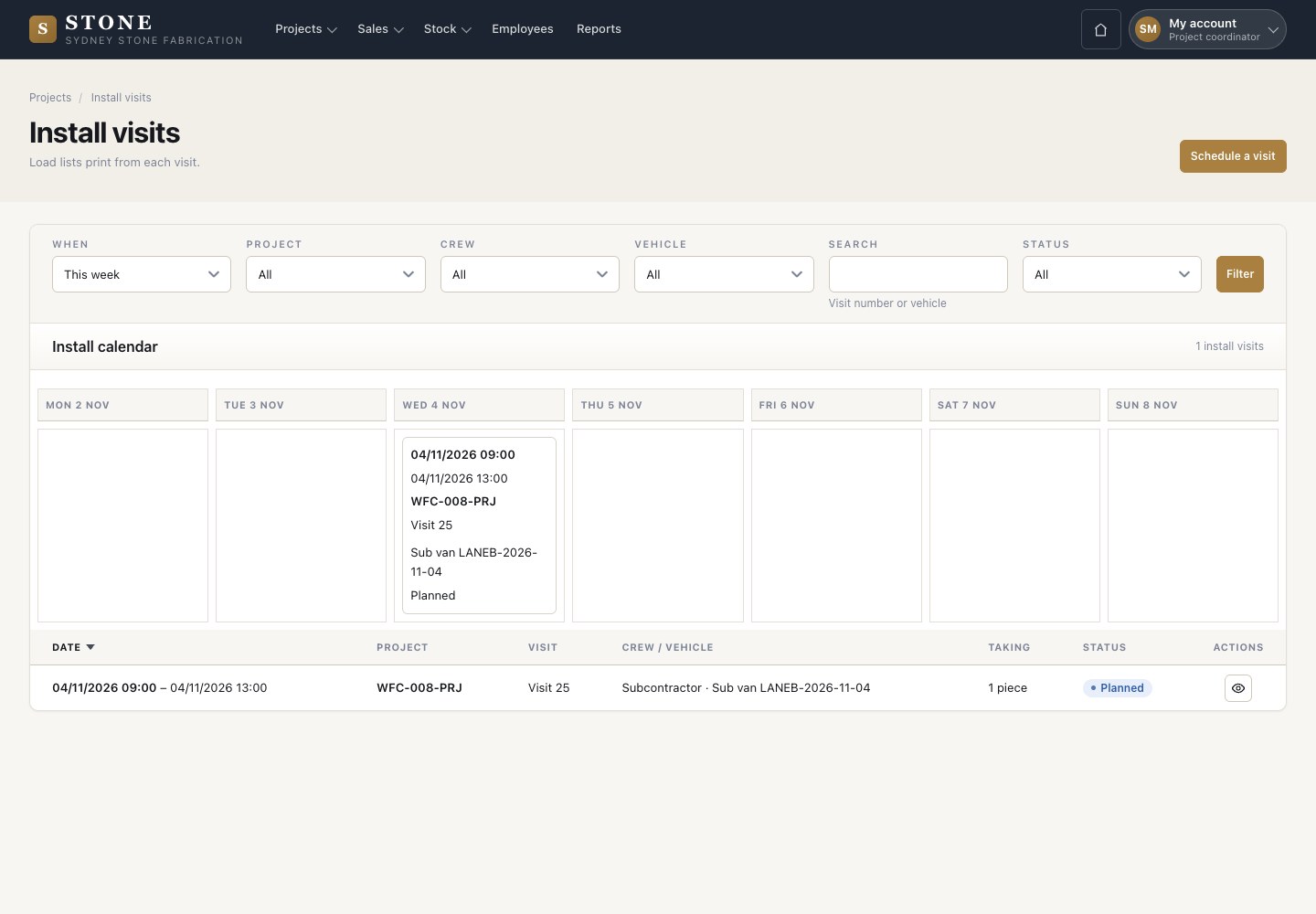
  1. Install visits shows the week, then every visit with its crew, vehicle, pieces and status.
  2. Load lists print from each visit.

Open in Stone ↗Full image ↗

Project coordinator · Install and sign off02

Before photographs

Worker

Before photographs

3Step 3 of 9

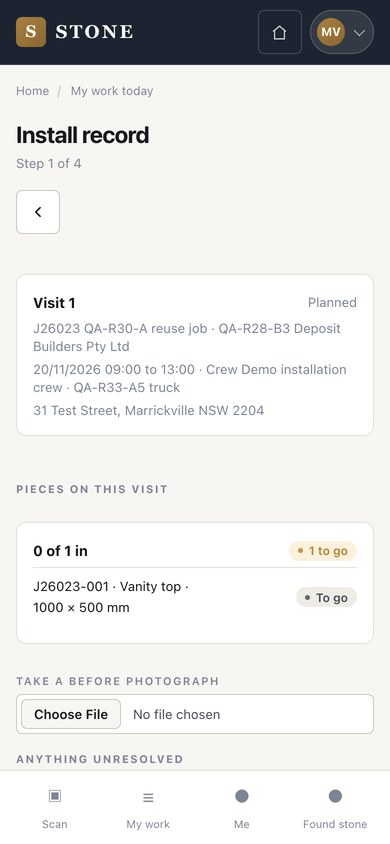
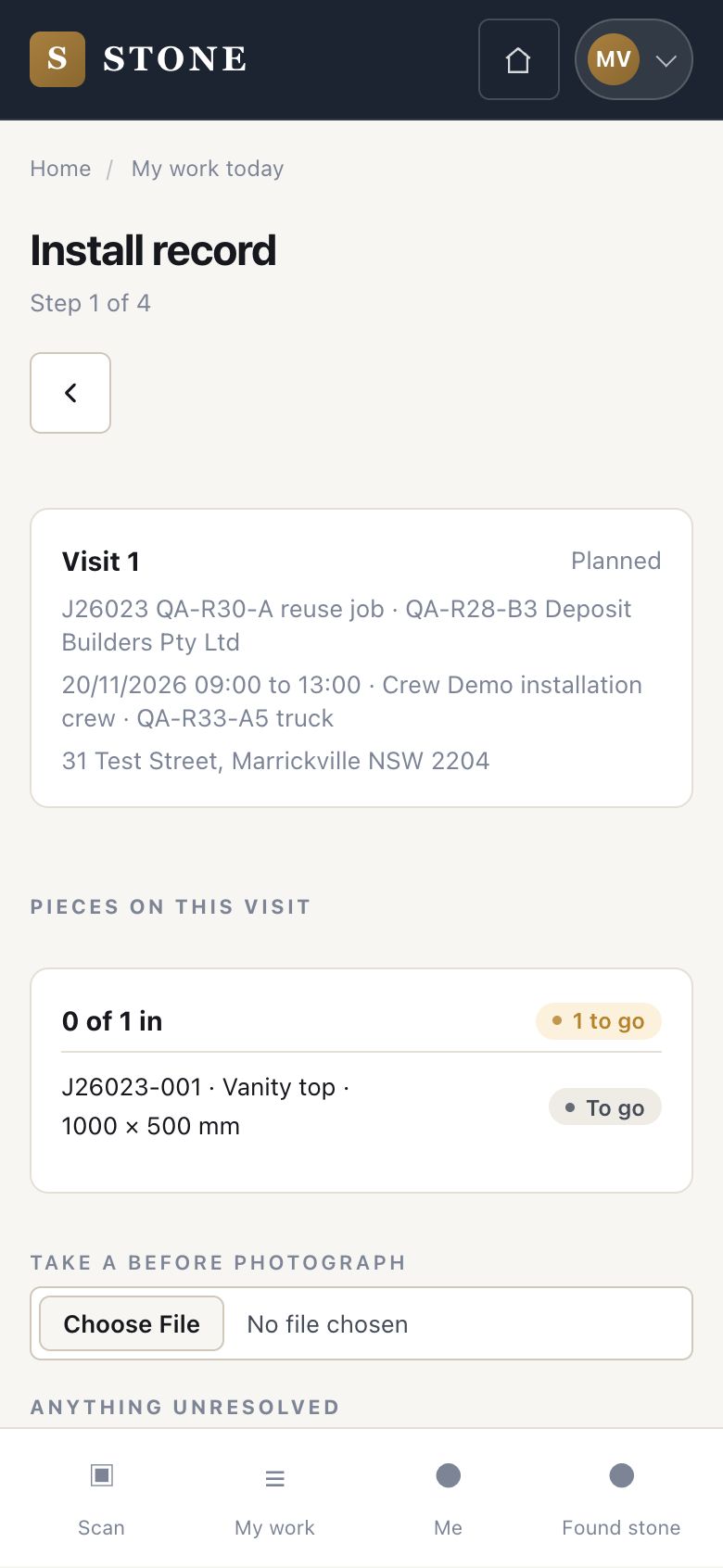
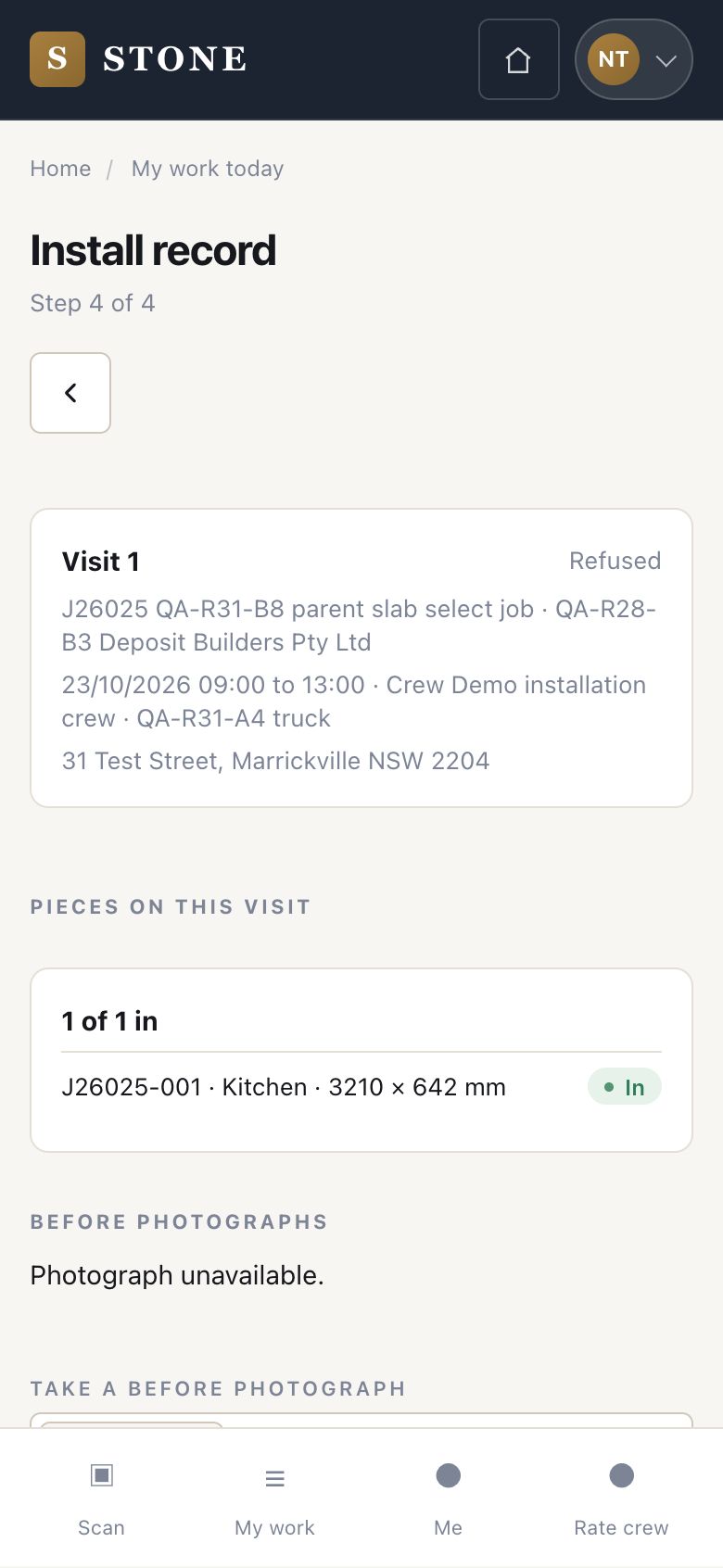
  1. A crew member opens the visit from My work today: Install record, Step 1 of 4.
  2. Check the pieces on this visit and take the before photographs.

Open in Stone ↗Full image ↗

Project coordinator · Install and sign off03

Delivered

Worker

Delivered

4Step 4 of 9

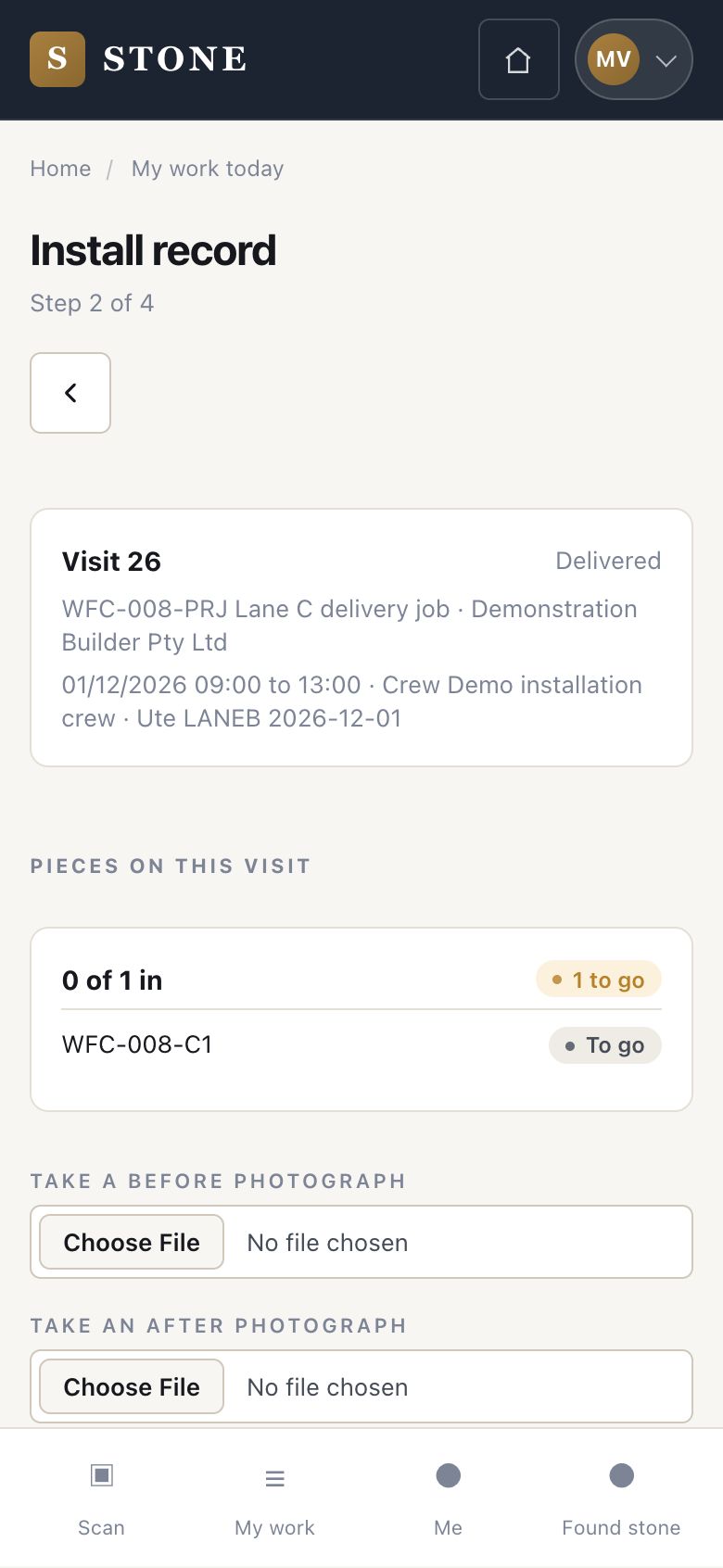
  1. Record the delivery when the pieces are on site: the visit moves to Delivered, Step 2 of 4.
  2. After fitting, take the after photographs and Record the install.

Open in Stone ↗Full image ↗

Project coordinator · Install and sign off04

Record a defect

Worker

Record a defect

5Step 5 of 9

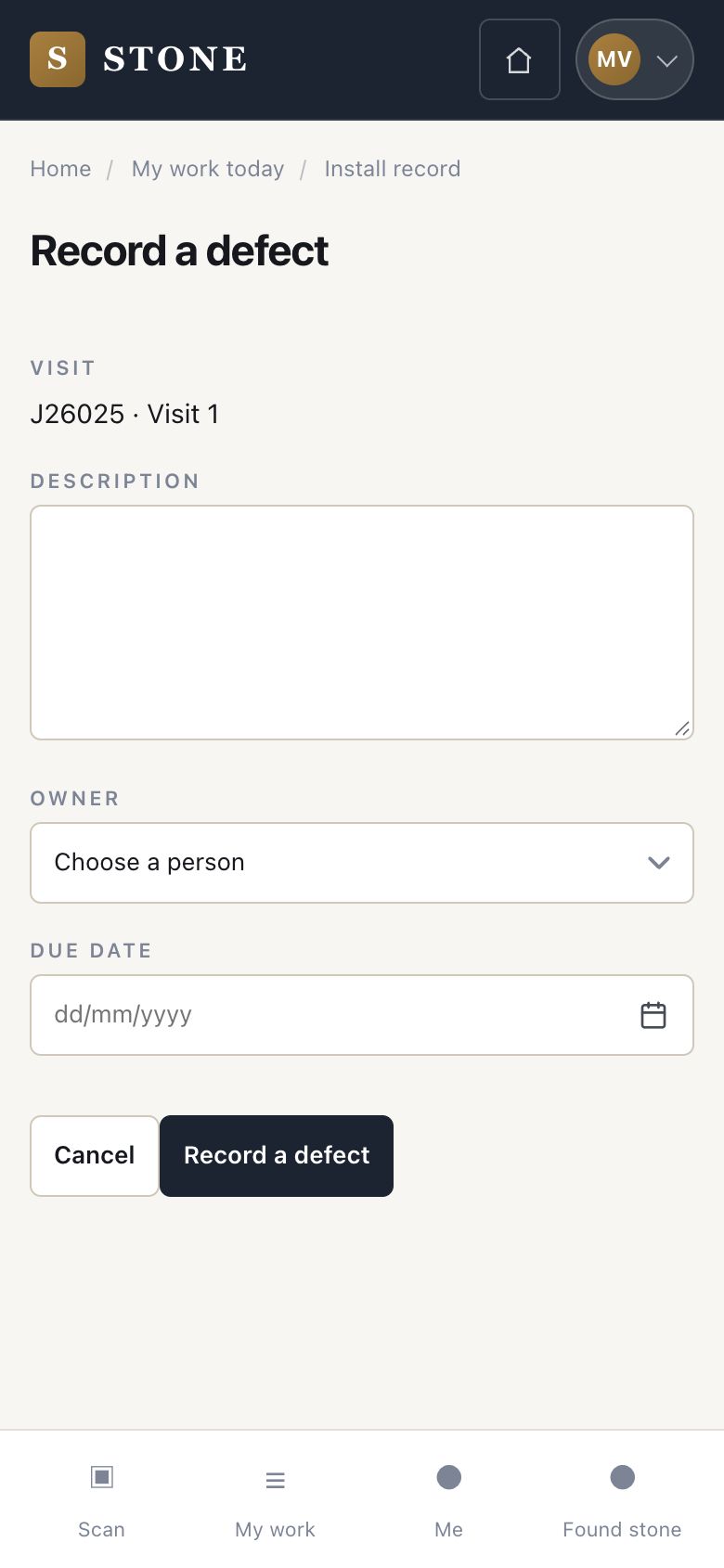
  1. Record a defect: describe it, choose who owns it and when it is due.

Only a crew member on this visit can record a defect.

Open in Stone ↗Full image ↗

Project coordinator · Install and sign off05

Signature or refusal

Supervisor

Signature or refusal

6Step 6 of 9

  1. At the end, Take the signature: the name of who accepts, and their signature on the screen.
  2. If the customer will not sign, record the refusal reason. Choose substitute evidence: a photograph or a file already on the job. The visit stays Installed until the office records the outcome.
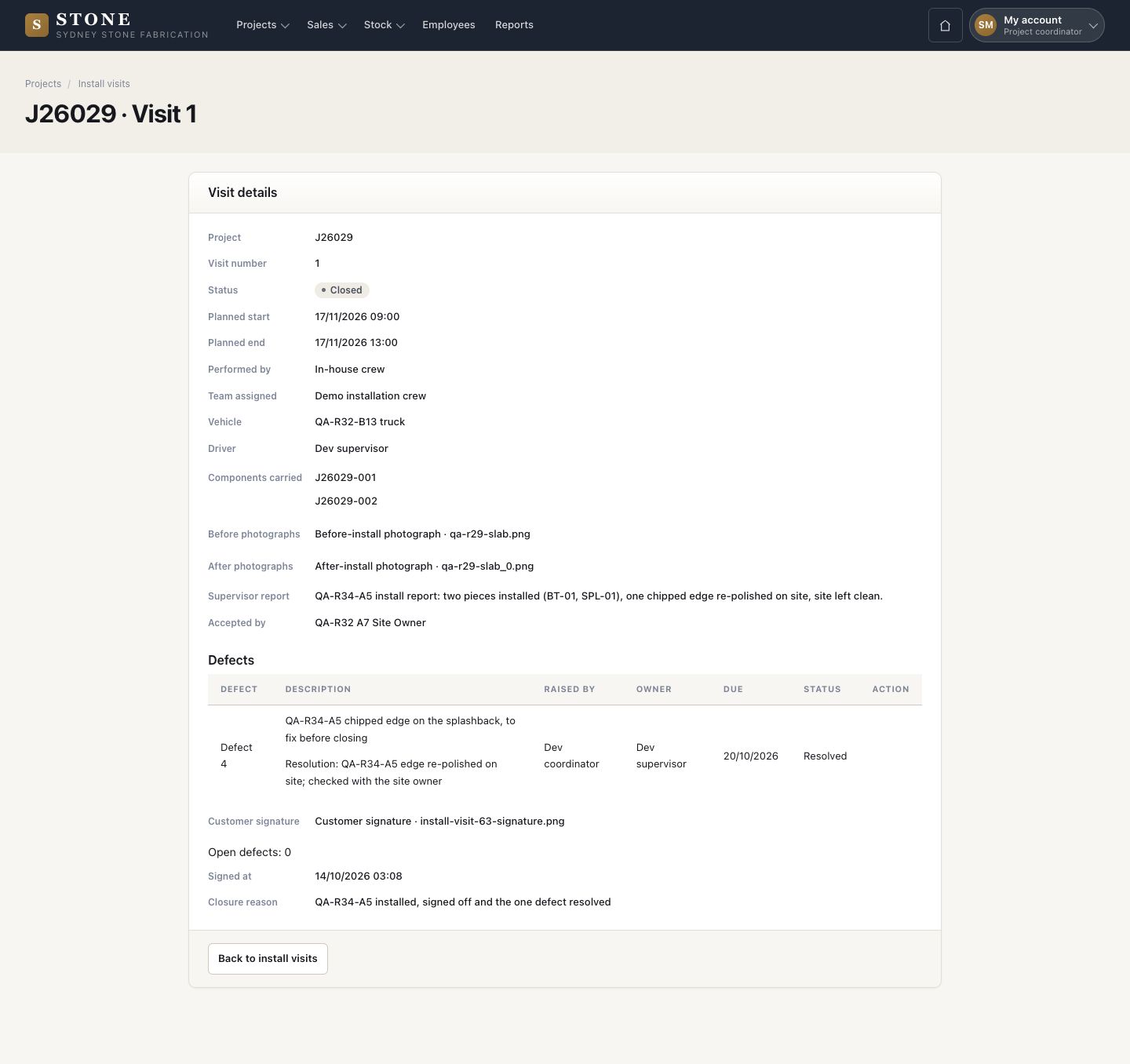
  3. Back in the office, open the visit, write the Supervisor report and press Save report.

Name who owns whatever is still open when you leave.
Open in Stone ↗Full image ↗

Project coordinator · Install and sign off06

Resolve the defects

Project coordinator

Resolve the defects

7Step 7 of 9

  1. Each defect shows who raised it, its owner, the due date and its status.
  2. The owner records how it was fixed.

An open defect stops the visit from closing.

Enlarge, then scroll

Open in Stone ↗Full image ↗

Project coordinator · Install and sign off07

Close the visit

Project coordinator

Close the visit

8Step 8 of 9

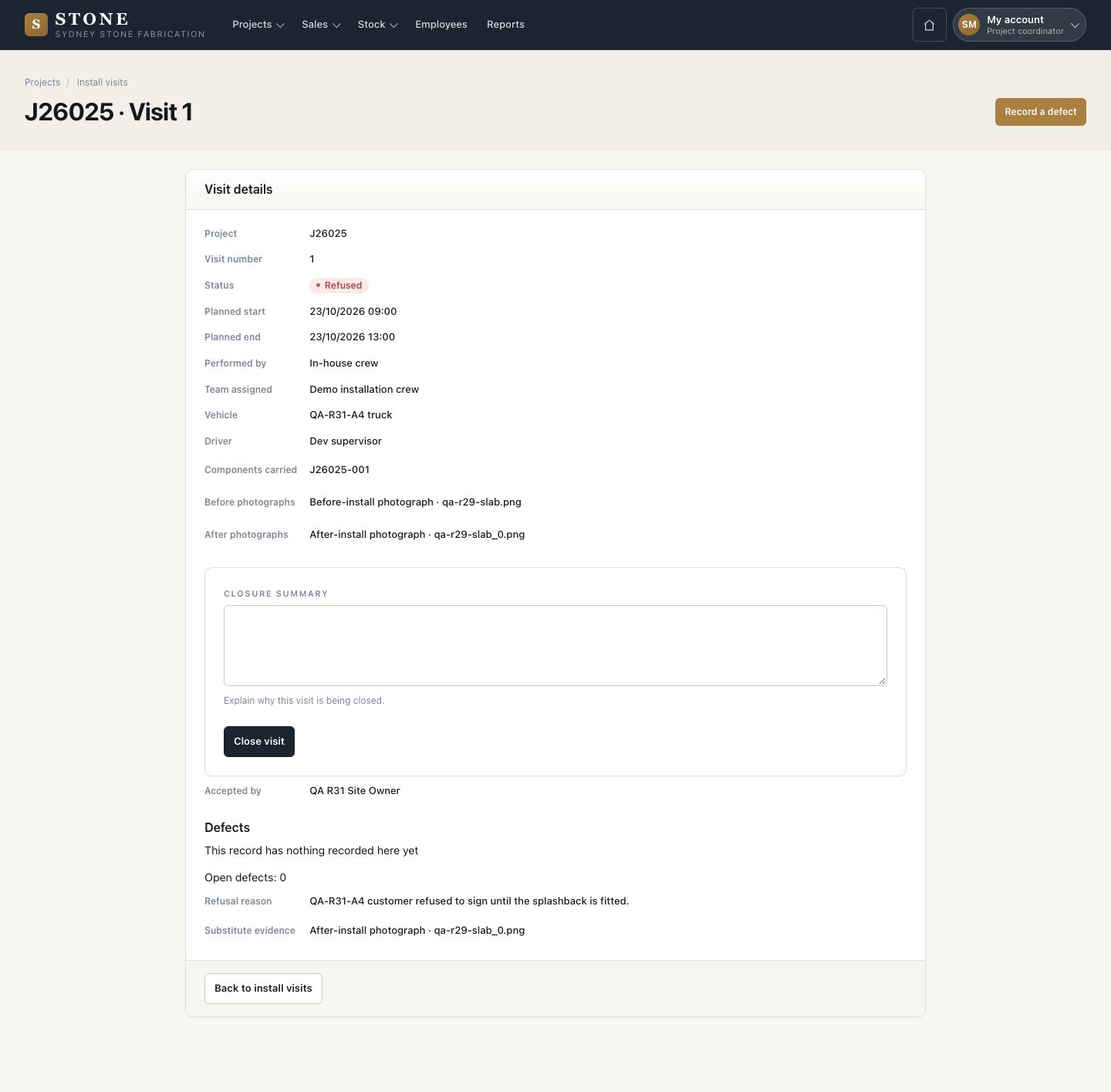
  1. Open the visit: details, pieces carried, photographs, who accepted, or the refusal and its evidence.
  2. A refused visit: first press Record refused outcome, then Record refused.
  3. Write the closure summary and press Close visit.

A visit closes only after its install report.

Enlarge, then scroll

Open in Stone ↗Full image ↗

Project coordinator · Install and sign off08

Handover and close

Project coordinator

Handover and close

9Step 9 of 9

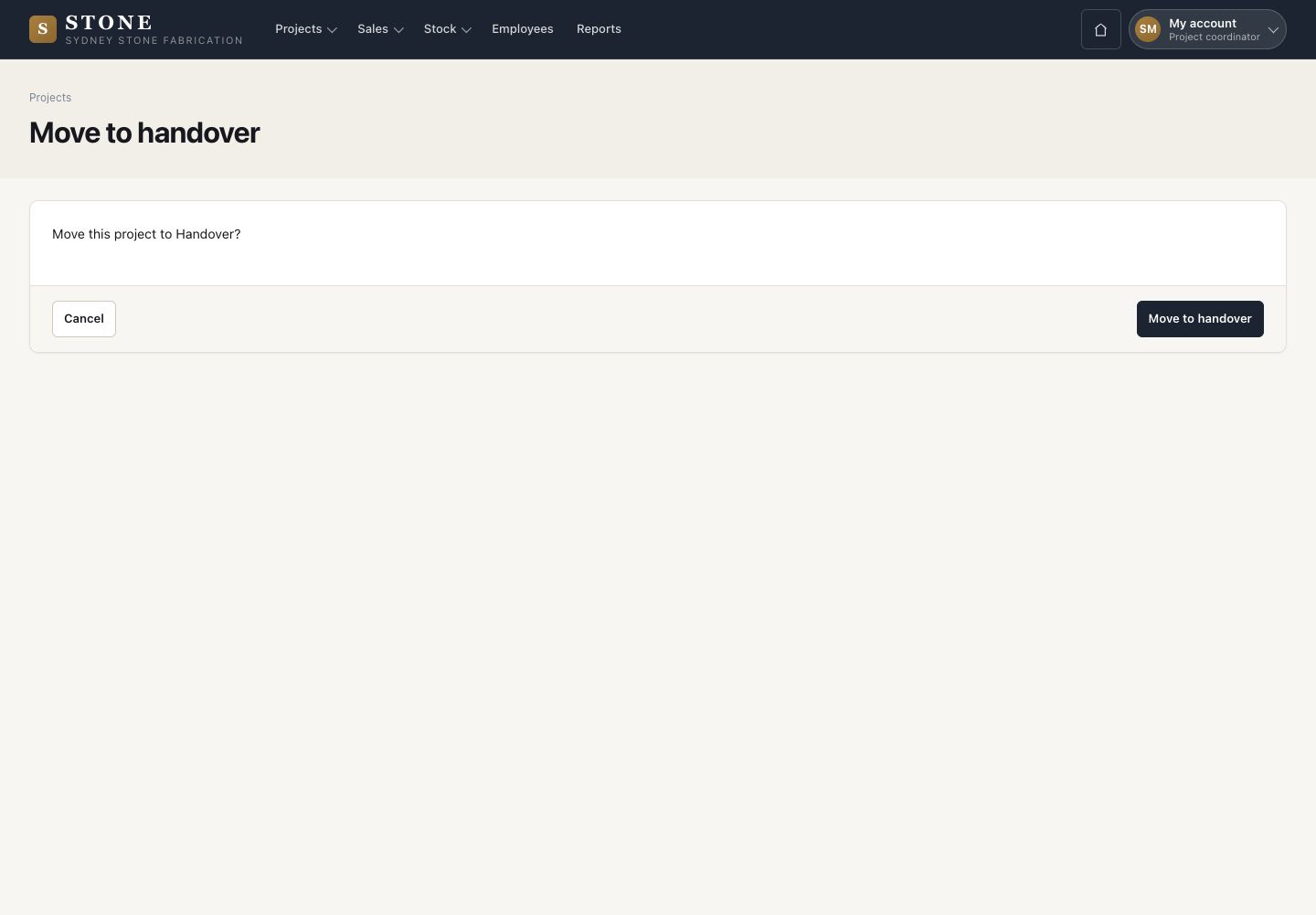
  1. On the project, press Move to handover and confirm.
  2. When the handover is done, press Close project, give the reason and confirm.

Open in Stone ↗Full image ↗

Check

The visit is closed and the job is Closed

Project coordinator · Install and sign off09
1 / 10