Find and hold stone

The right slab for the measured line

  • An approved fabrication measure
Warehouse storekeeper
Find stone

Warehouse storekeeper

Find stone

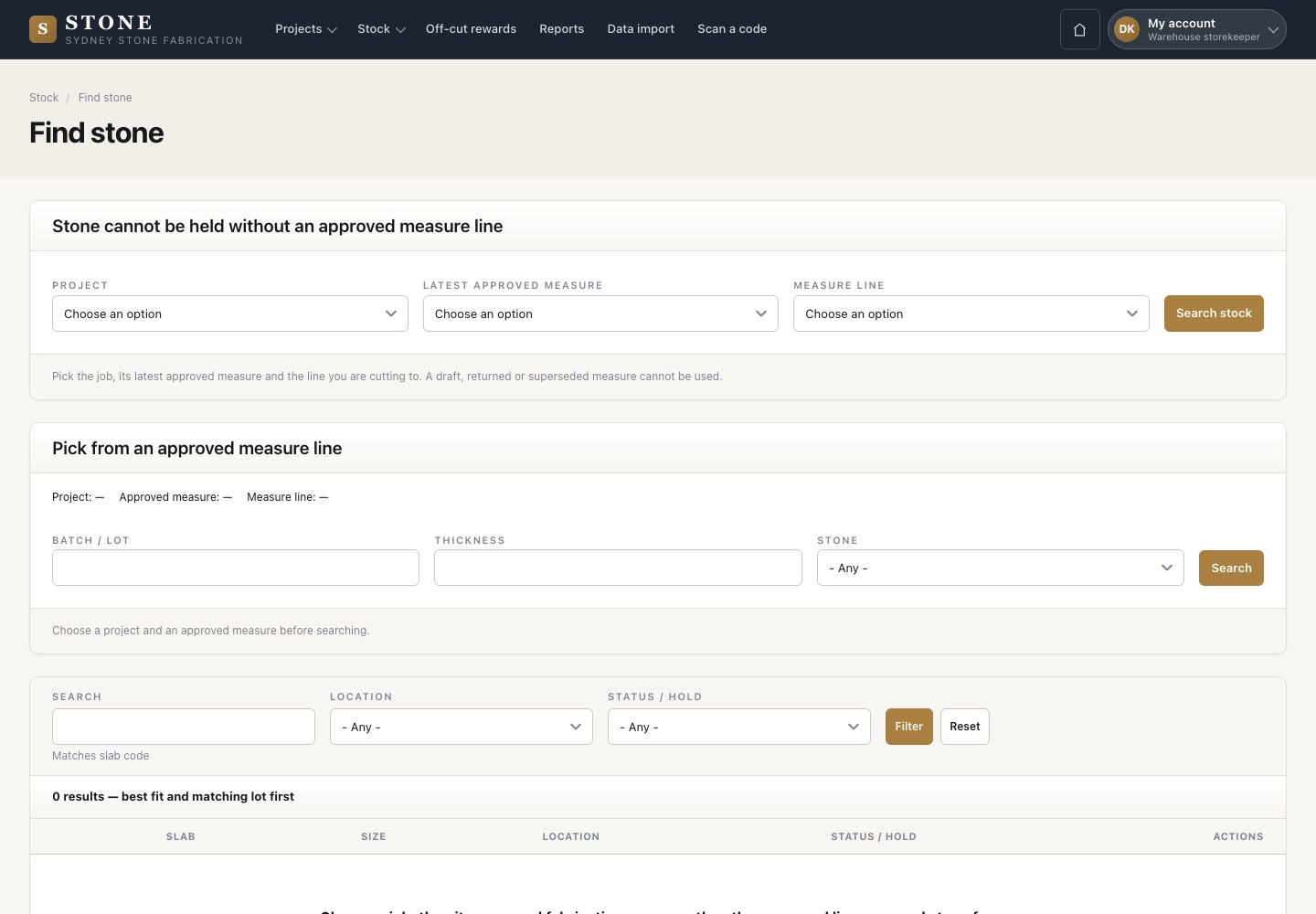
1Step 1 of 5

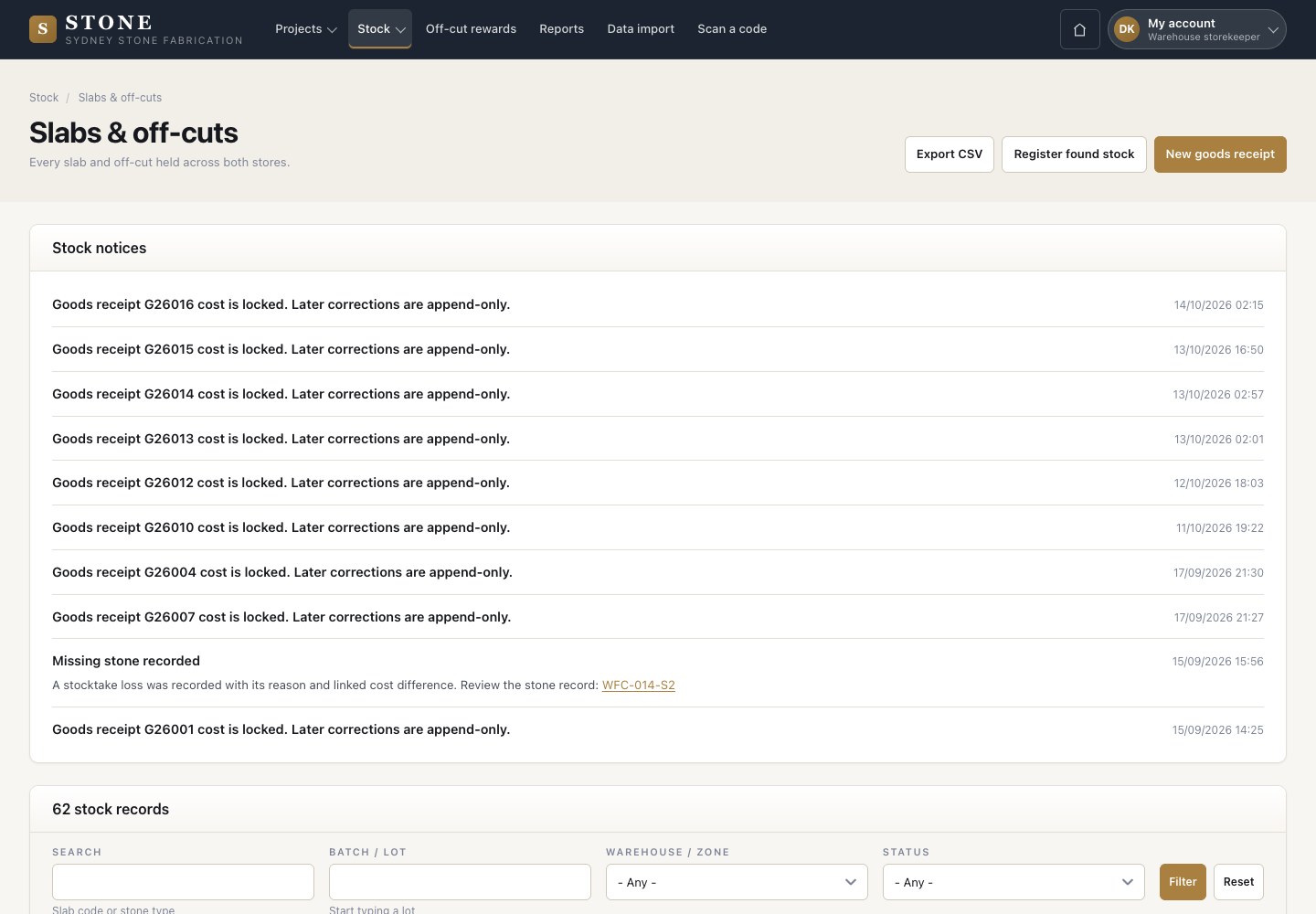
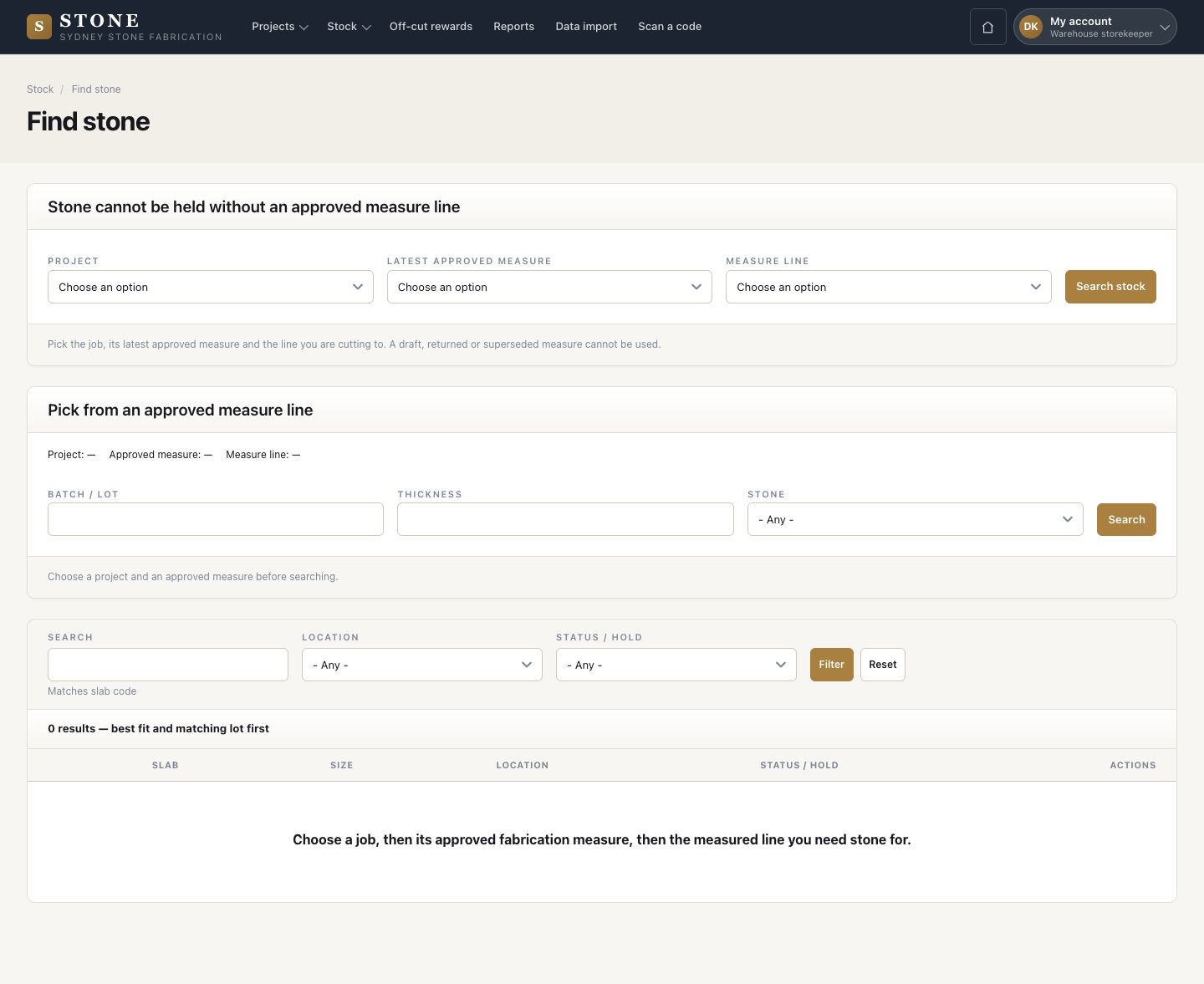
  1. Stock → Find stone: choose the job, then its approved fabrication measure, then the measured line you need stone for.
  2. Narrow the search by batch, thickness, stone, location or hold, then search.

Enlarge, then scroll

Open in Stone ↗Full image ↗

Warehouse storekeeper · Find and hold stone01

Slabs & off-cuts

Warehouse storekeeper

Slabs & off-cuts

2Step 2 of 5

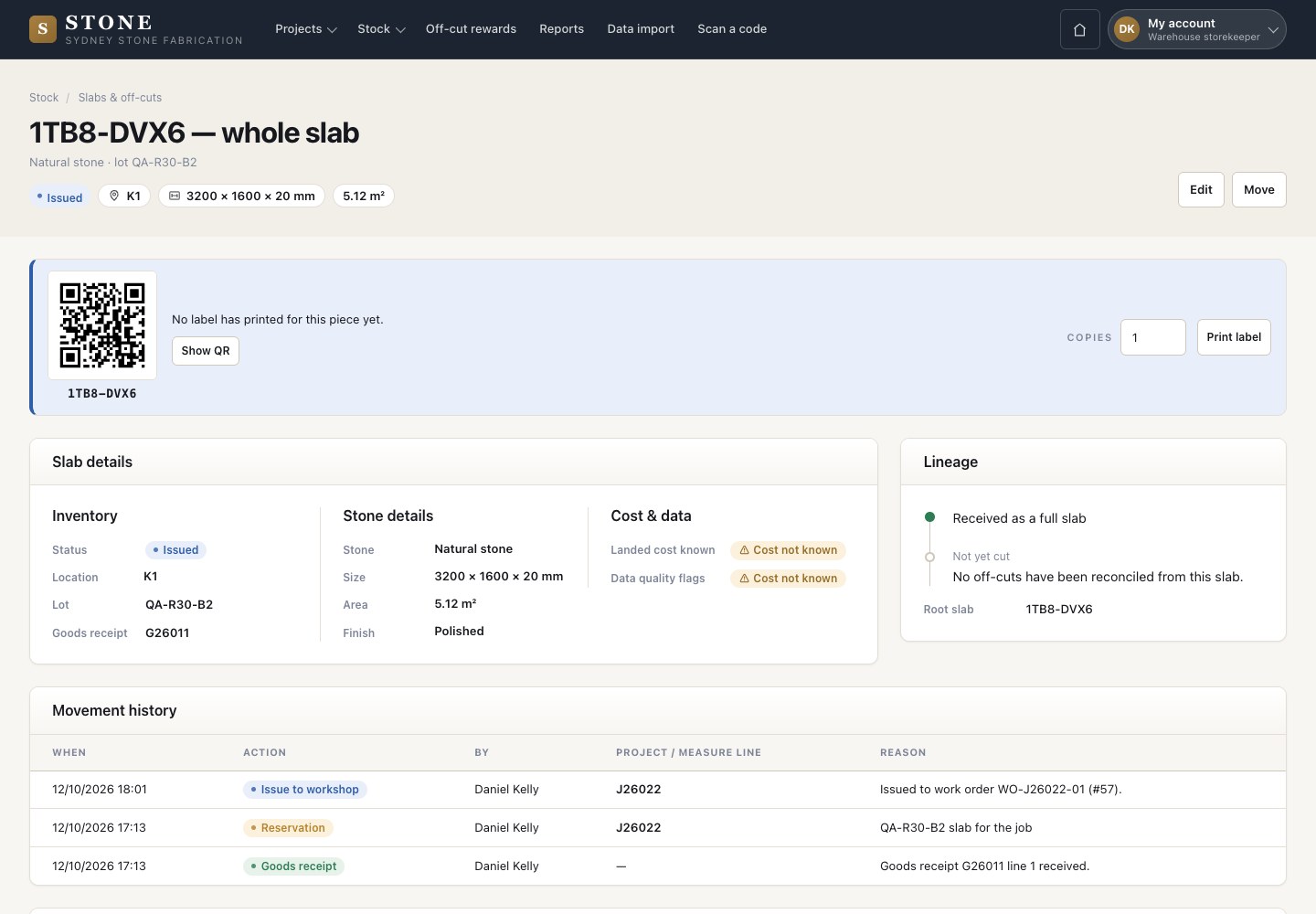
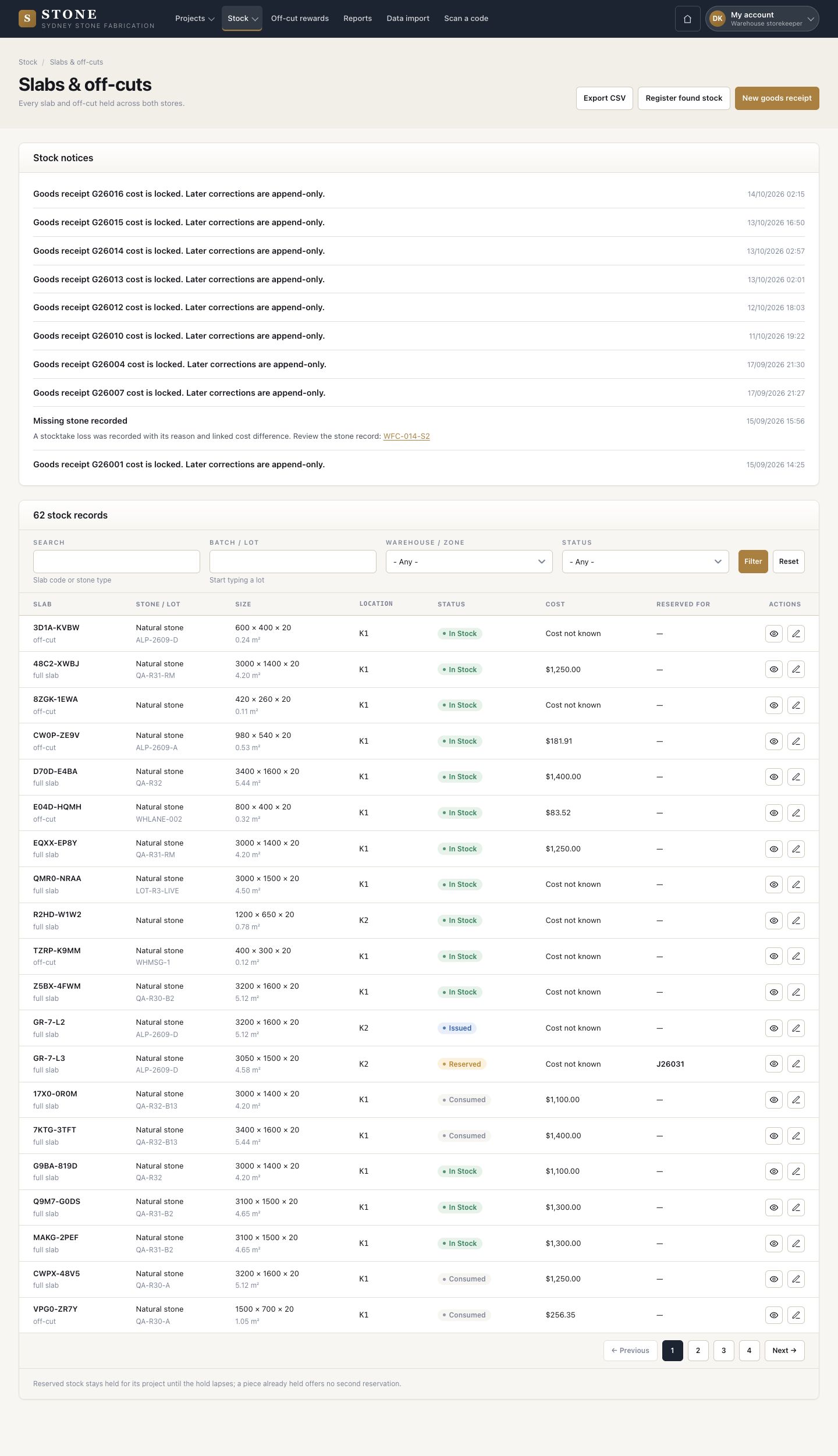
  1. Every slab and off-cut in both stores, with its size, location, status, cost and the job it is reserved for.

Enlarge, then scroll

Open in Stone ↗Full image ↗

Warehouse storekeeper · Find and hold stone02

Reserve

Warehouse storekeeper

Reserve

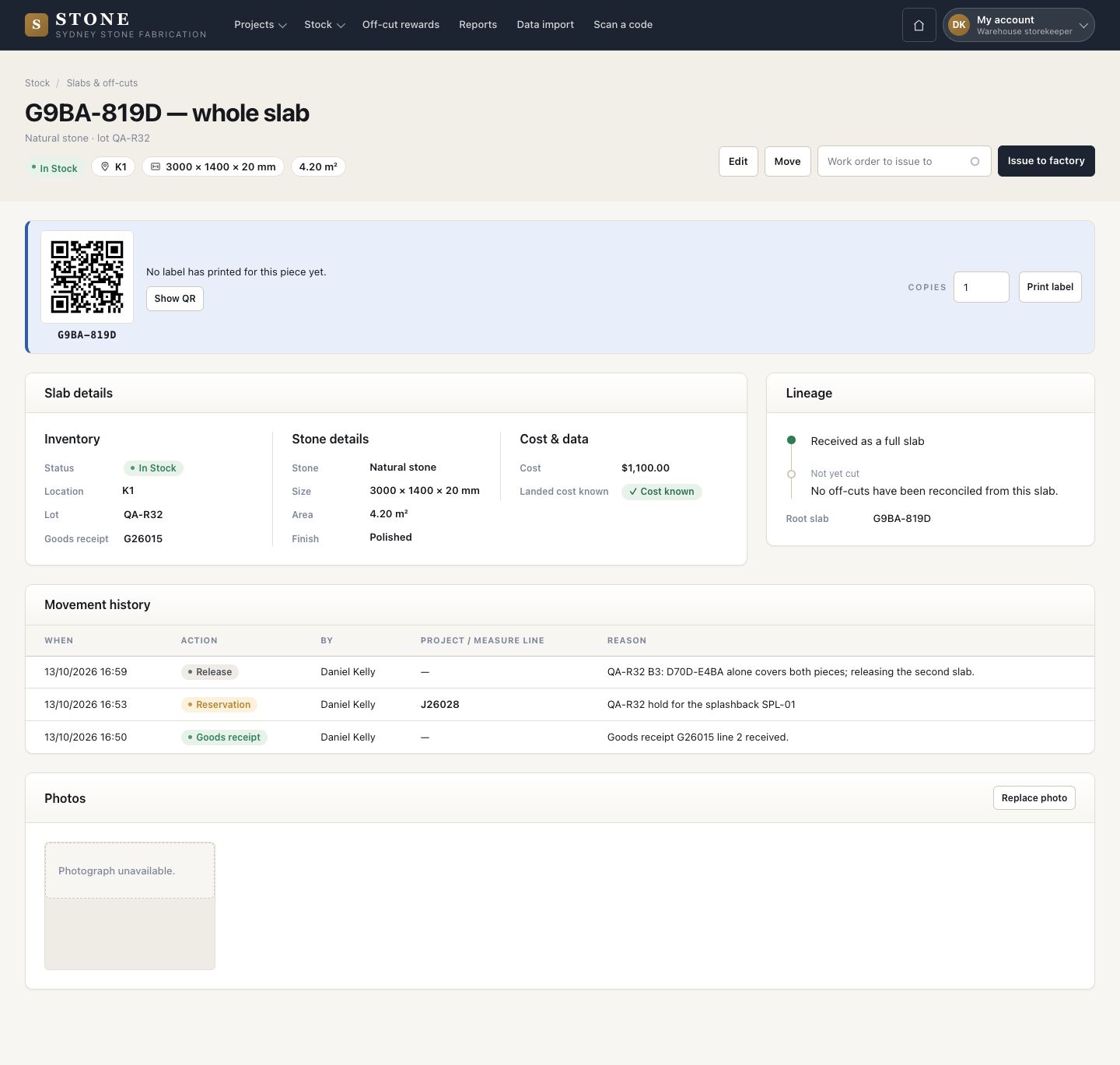
3Step 3 of 5

  1. Reserve a slab from the results: choose until when and give the reason.
  2. On the slab, Release, Extend hold or Take over hold changes the hold, each with a reason. The movement history keeps every change, with who and why.

A hold that reaches its expiry is released automatically.

Enlarge, then scroll
Open in Stone ↗Full image ↗

Warehouse storekeeper · Find and hold stone03

Issue to factory

Warehouse storekeeper

Issue to factory

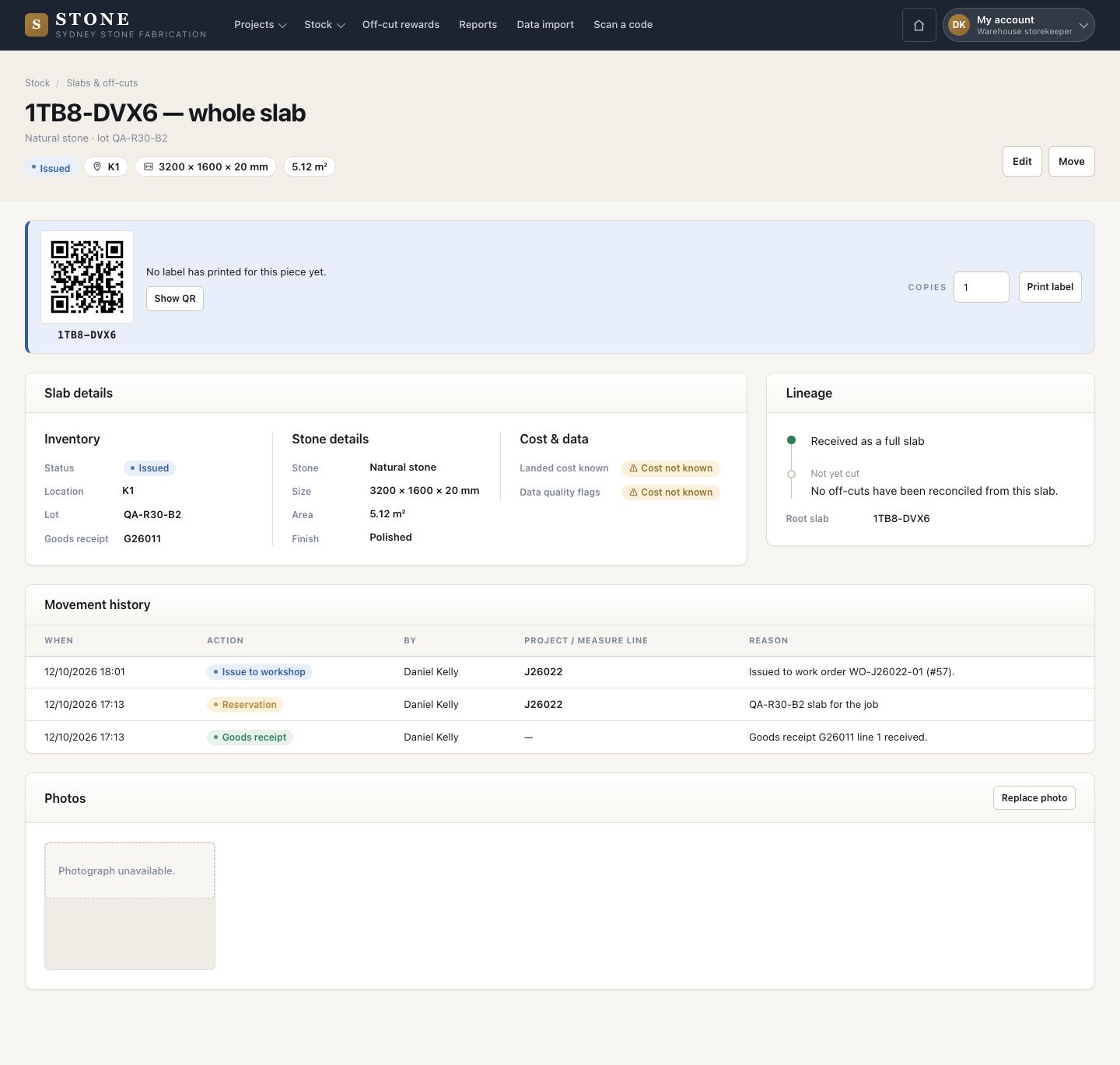
4Step 4 of 5

  1. On the slab, enter the work order and press Issue to factory.

Until the work order starts, the slab can go back to the store: Move, then Return to store. After that it can only be consumed.

Enlarge, then scroll

Open in Stone ↗Full image ↗

Warehouse storekeeper · Find and hold stone04

Find an off-cut

Warehouse storekeeper

Find an off-cut

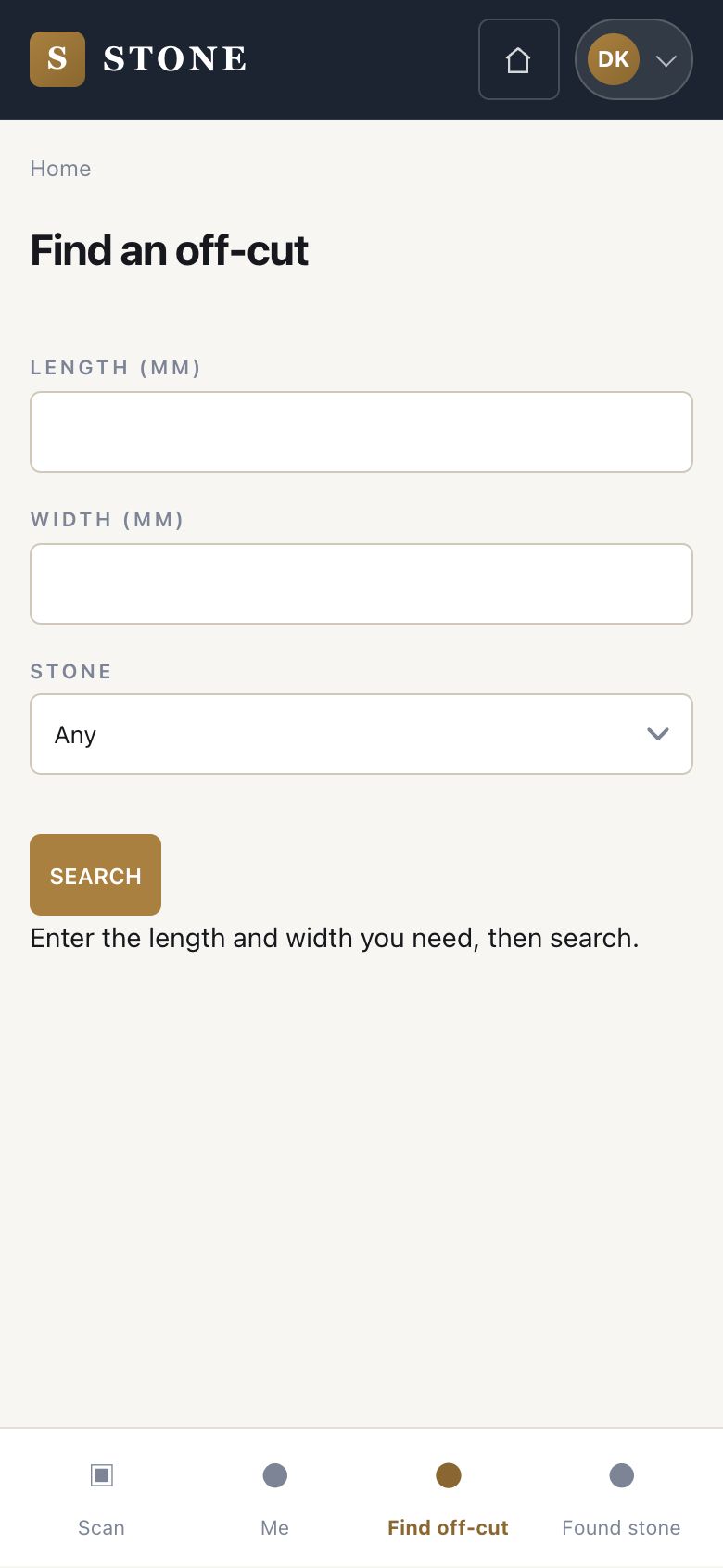
5Step 5 of 5

  1. On the phone, Find an off-cut: enter the length and width you need, choose the stone, then search.

Open in Stone ↗Full image ↗

Check

The slab is held for the job, then issued to its work order

Warehouse storekeeper · Find and hold stone05
1 / 6