Variations

Scope changes after the job is won

  • A Won original quote
Project coordinator
From the won quote

Project coordinator

From the won quote

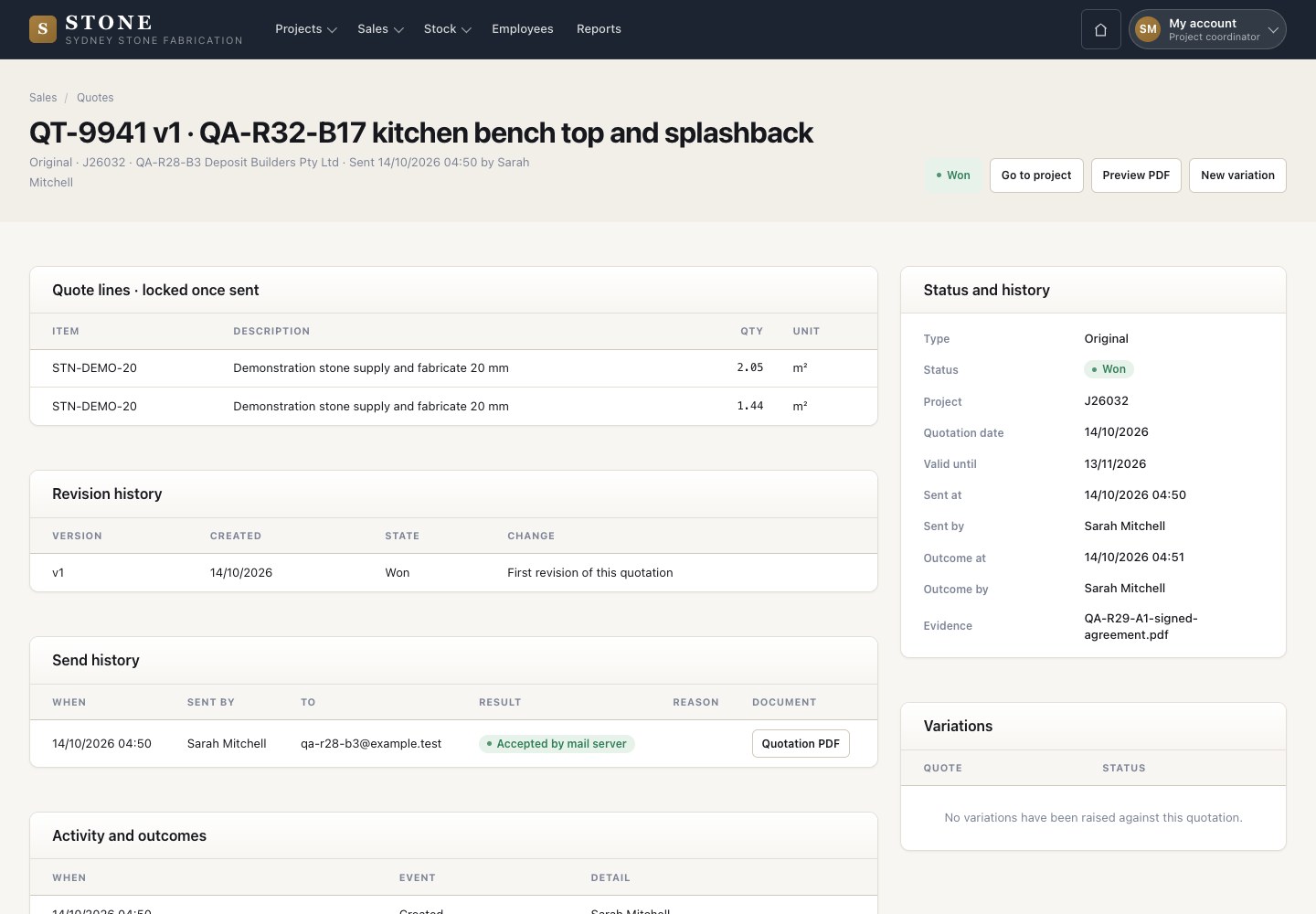
1Step 1 of 5

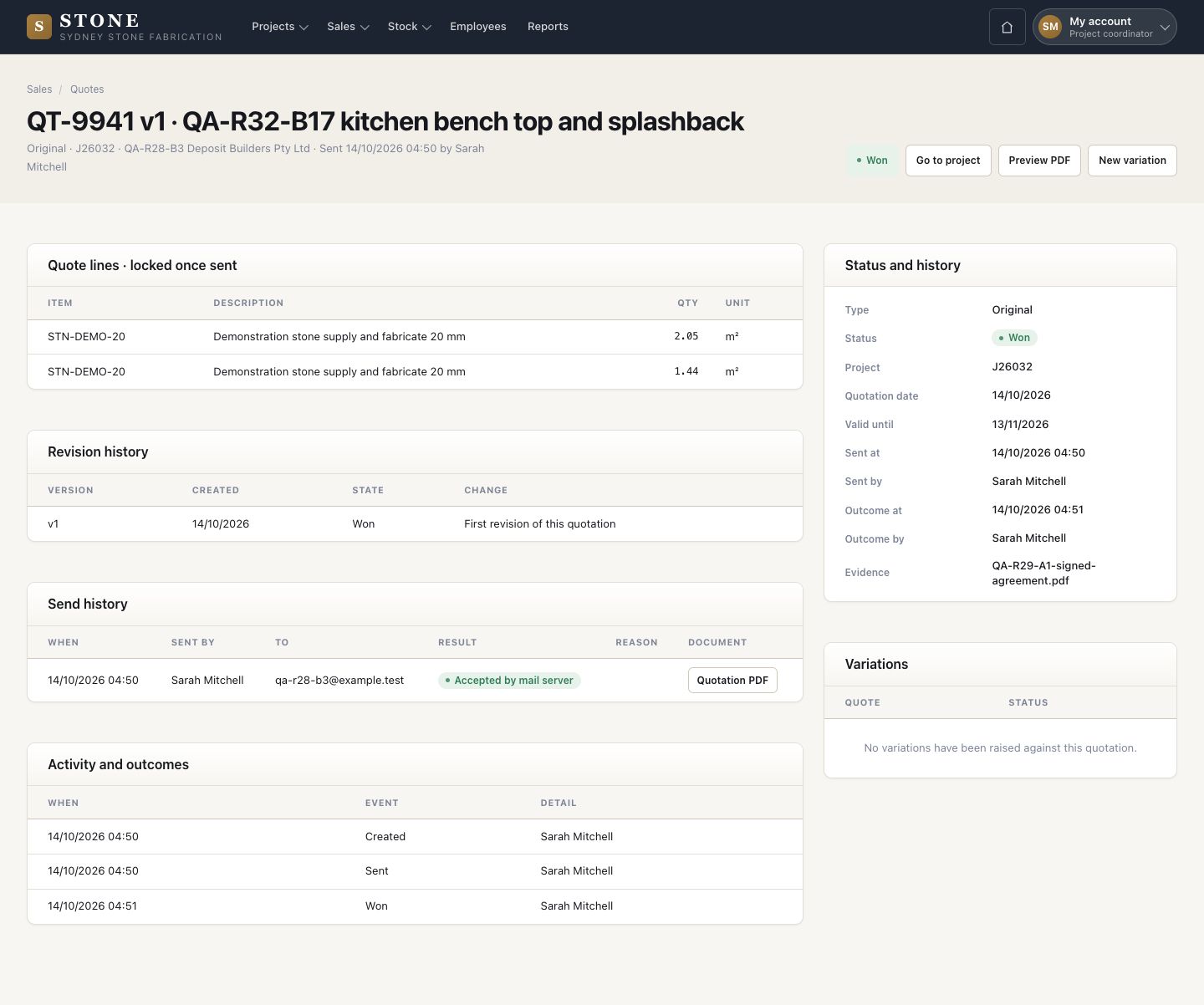
  1. Open the Won original quote.
  2. Press New variation.

Enlarge, then scroll

Open in Stone ↗Full image ↗

Project coordinator · Variations01

New variation

Project coordinator

New variation

2Step 2 of 5

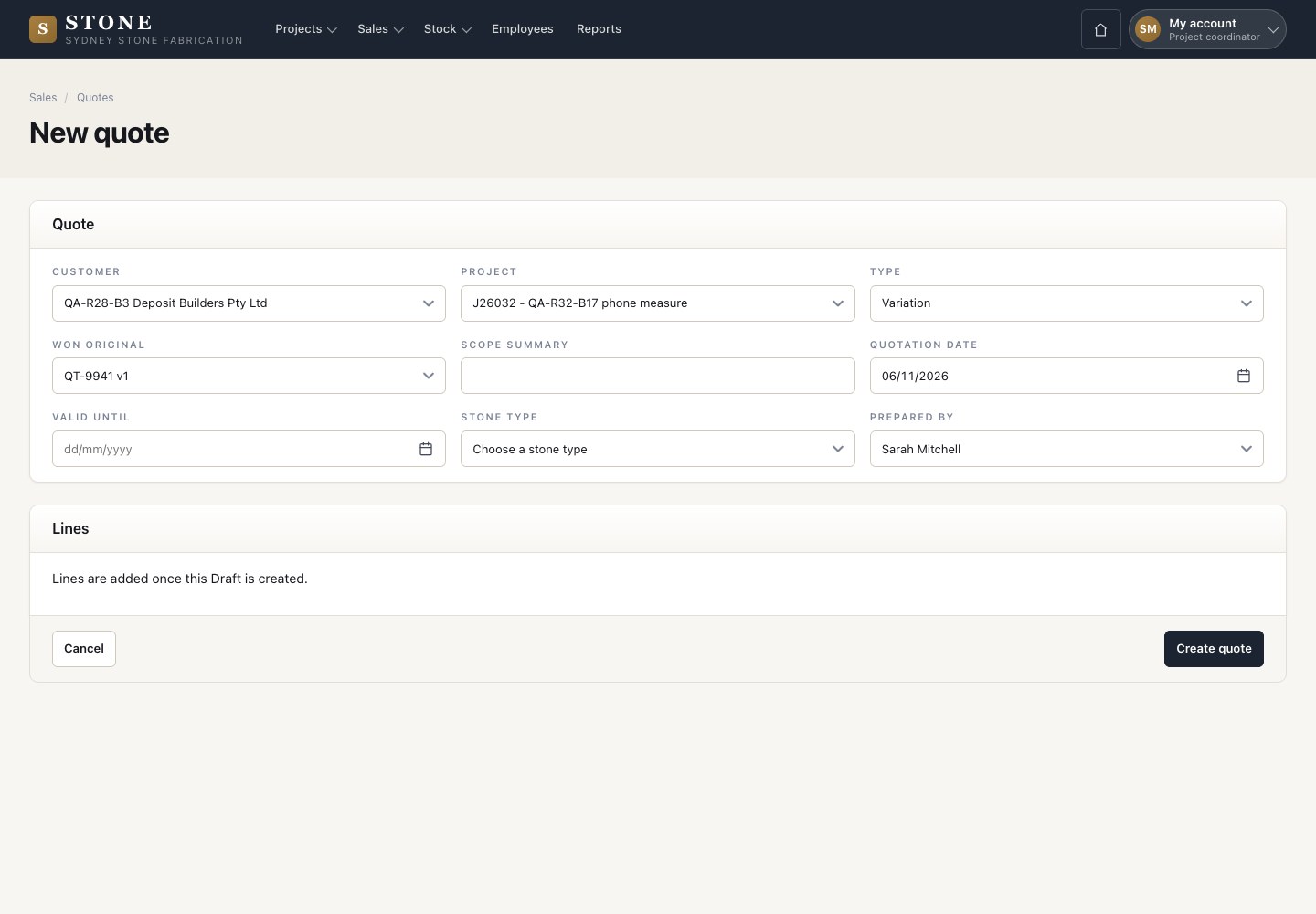
  1. The form opens with Type Variation and the Won original chosen.
  2. Enter the scope summary and the dates, then Create quote.

Open in Stone ↗Full image ↗

Project coordinator · Variations02

Lines of the change

Project coordinator

Lines of the change

3Step 3 of 5

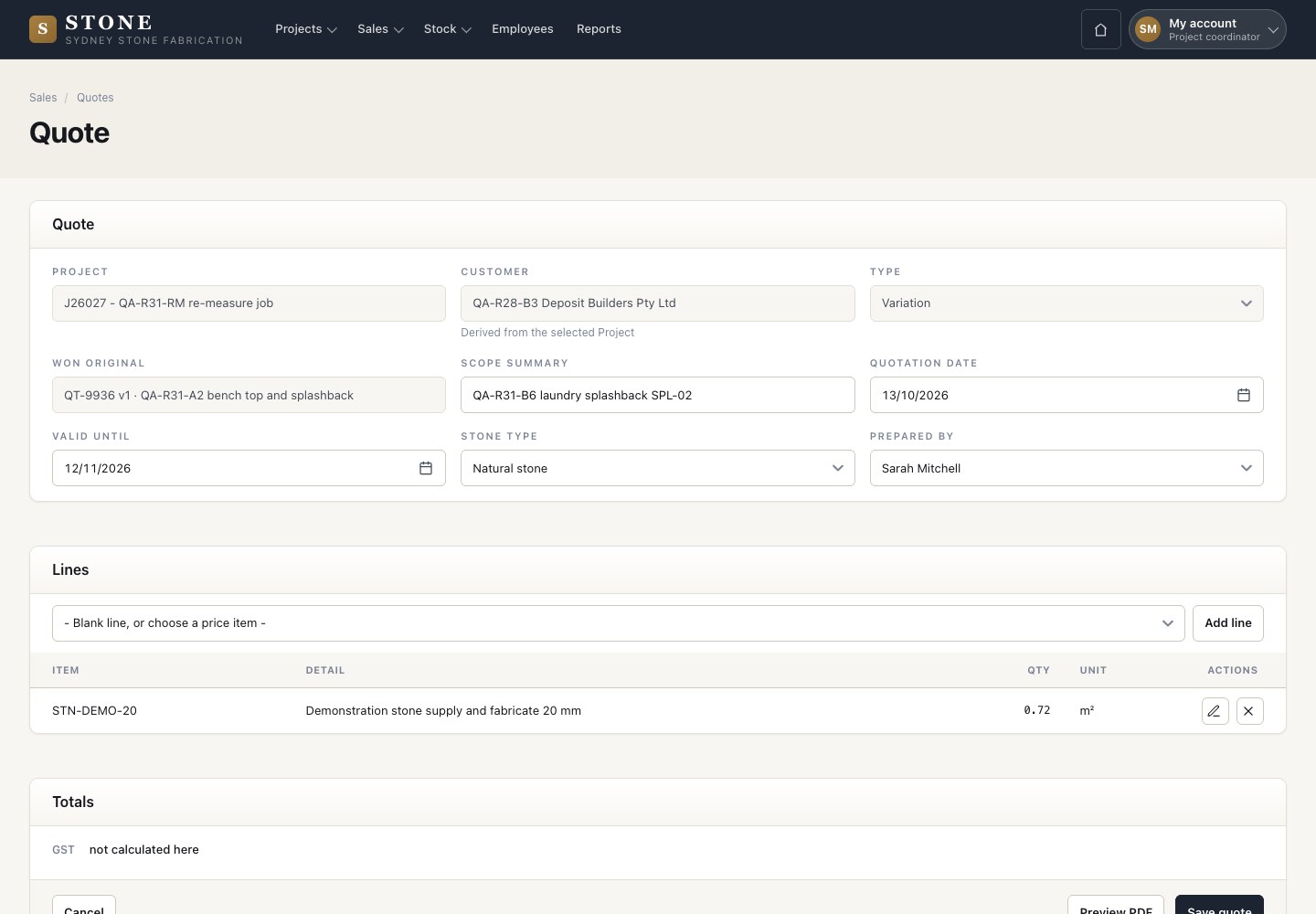
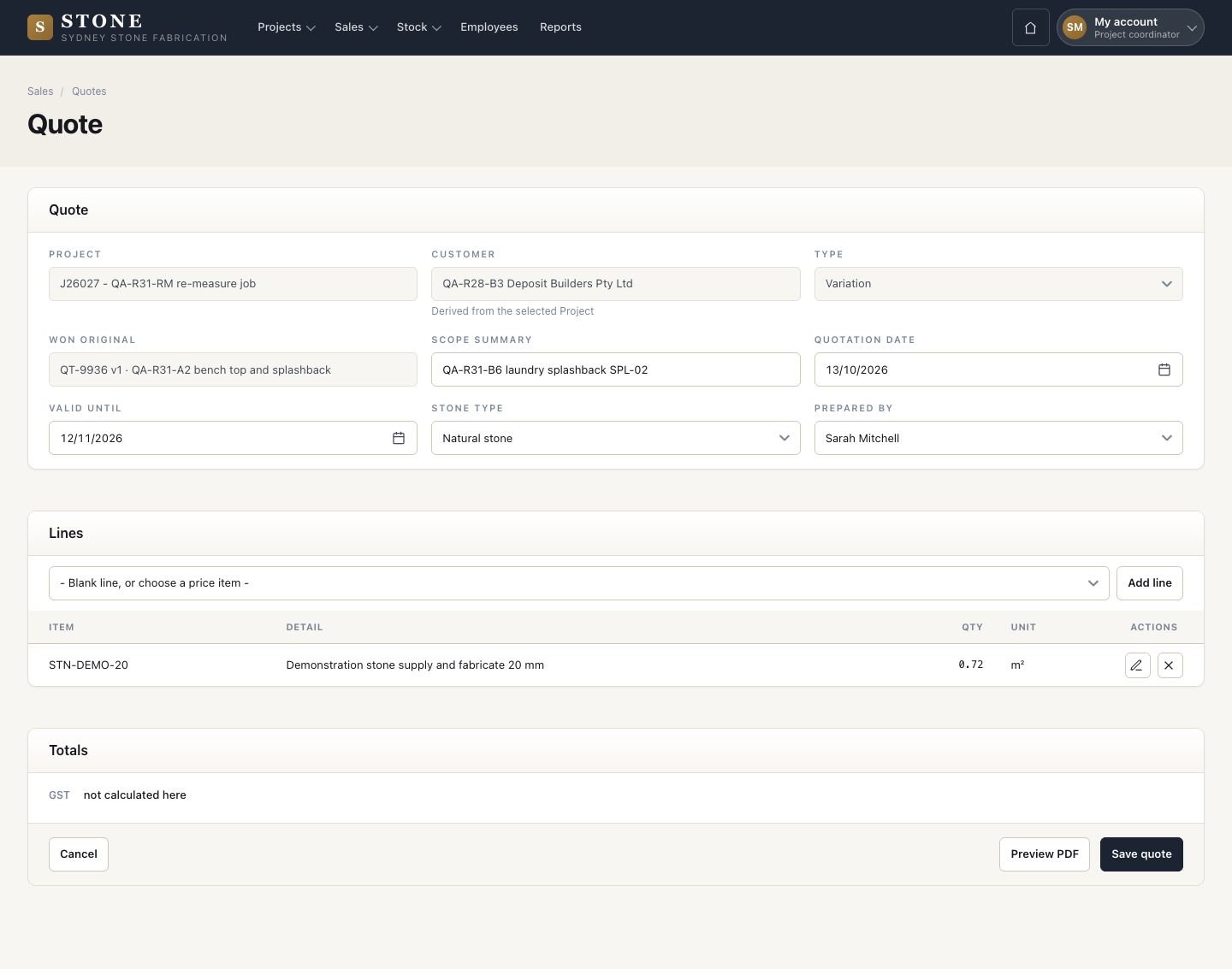
  1. Add the lines of the change from the Price library, with their quantities.
  2. A piece that was not on the quote gets a New scope, for example SPL-02.
  3. Save quote. The variation stays a Draft until you send it.

Enlarge, then scroll

Open in Stone ↗Full image ↗

Project coordinator · Variations03

Send the variation

Project coordinator

Send the variation

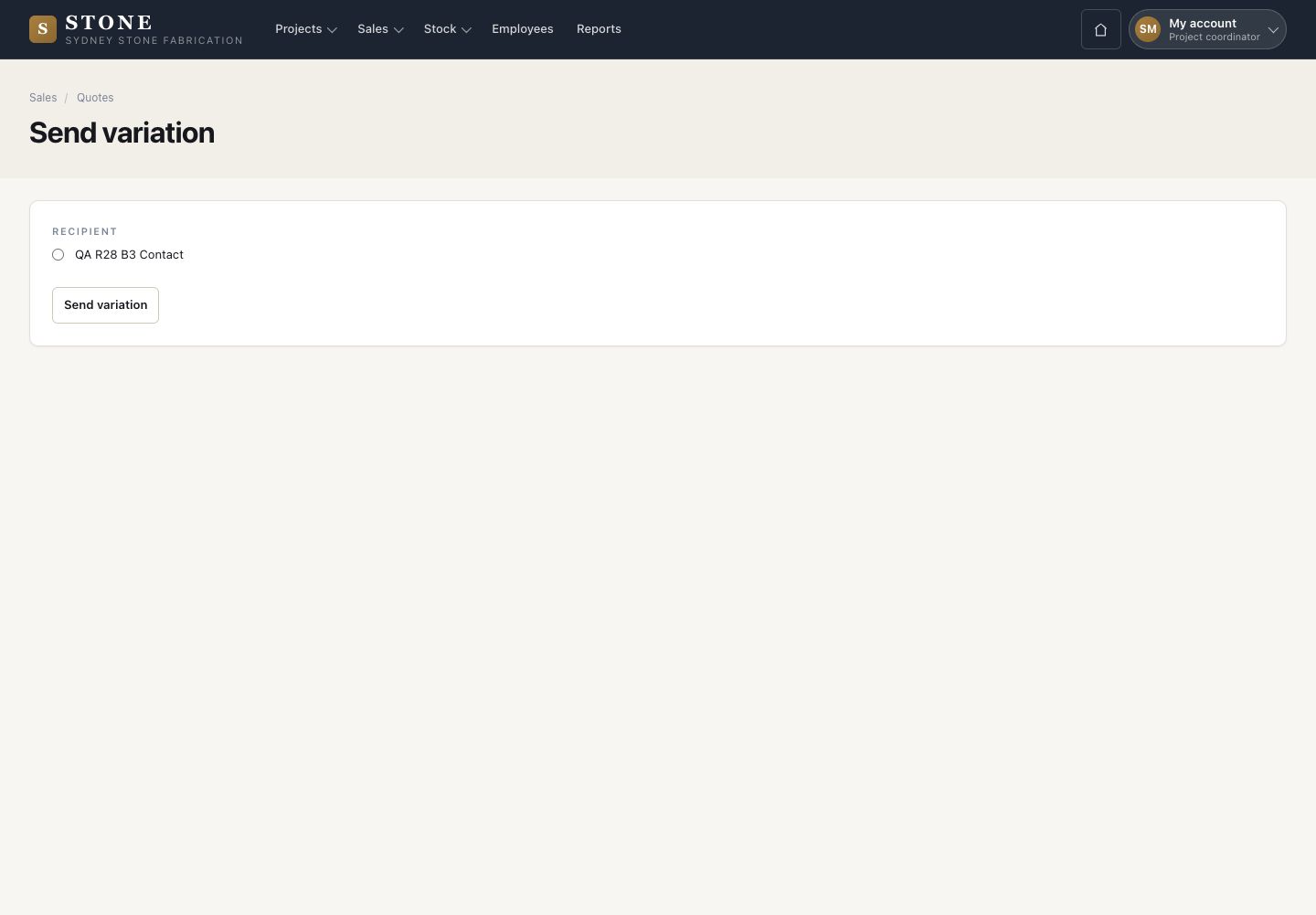
4Step 4 of 5

  1. Choose the recipient and press Send variation.
  2. The PDF goes by email and the lines lock.

Open in Stone ↗Full image ↗

Project coordinator · Variations04

Customer accepted

Project coordinator
Customer accepted

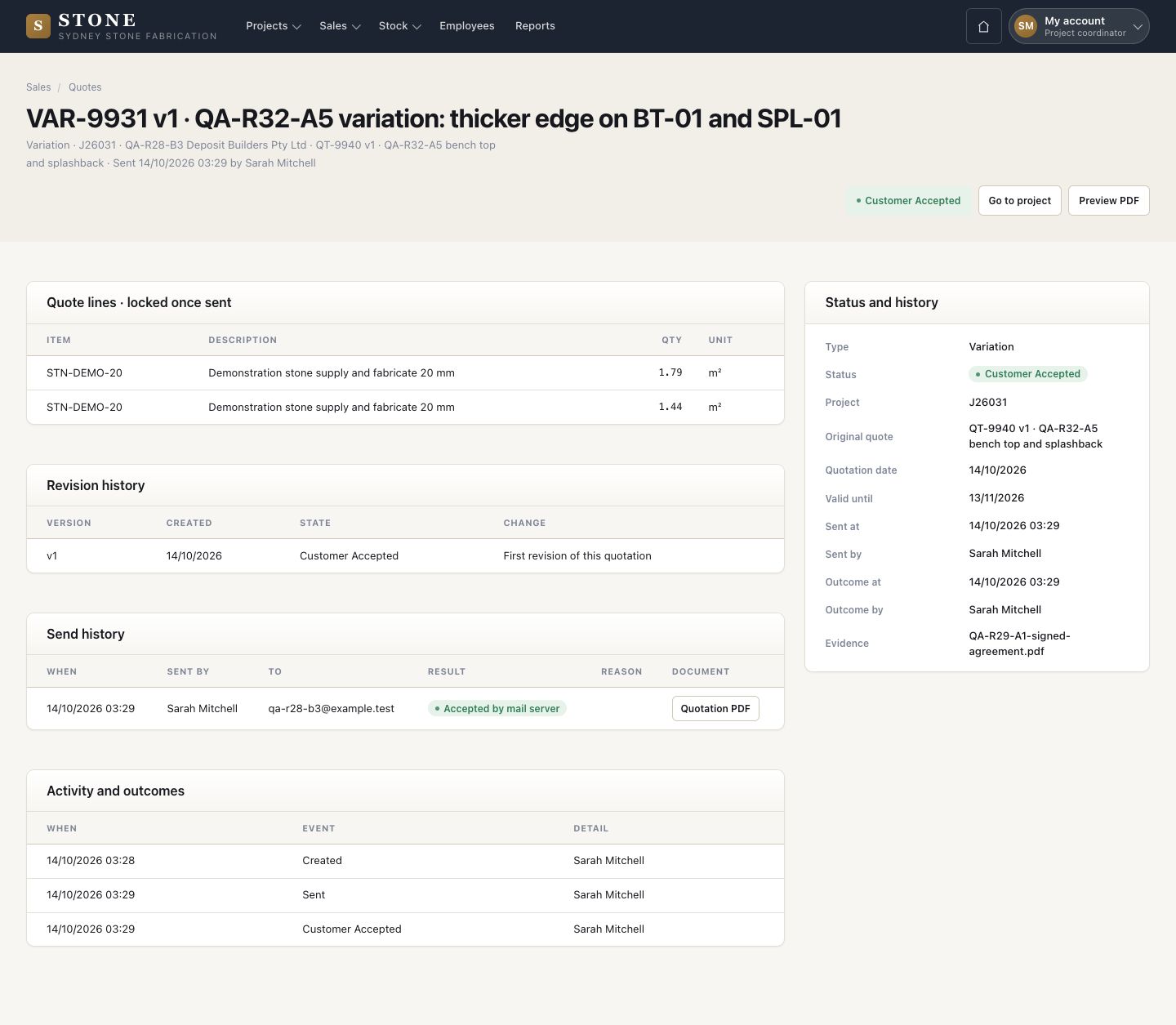
5Step 5 of 5

  1. Record the answer when the customer replies: Customer accepted.
  2. An accepted variation counts in the contract value of the job.
  3. Customer rejected keeps the variation on record with its reason. It adds nothing to the contract value.

A work order that cuts a piece of this variation cannot start until the customer has accepted it.

Enlarge, then scroll

Open in Stone ↗Full image ↗

Check

The accepted variation is part of the contract value of the job

Project coordinator · Variations05
1 / 6